| Deutsch | |||||||||||||||||||
|---|---|---|---|---|---|---|---|---|---|---|---|---|---|---|---|---|---|---|---|
Voraussetzungen
Einrichtung einer digitalen Unterschrift1. Schritt: Adobe Acrobat Pro Anmeldung und Persönliches Zertifikat erstellen und installieren.Wenn Sie sich noch nicht für Adobe Creative Cloud registriert haben, folgen Sie hier unserer Anleitung. Wenn Sie noch kein persönliches Zertifikat angefordert haben, folgen Sie hier unserer Anleitung. Nachdem Sie ein persönliches Zertifikat erhalten und hertuntergeladen haben, müssen sie es zuerst installieren. Nutzen Sie hierfür folgende Anleitung: HARICA Zertifikat Installation (Windows) bzw. macOS - Zertifikat Installation
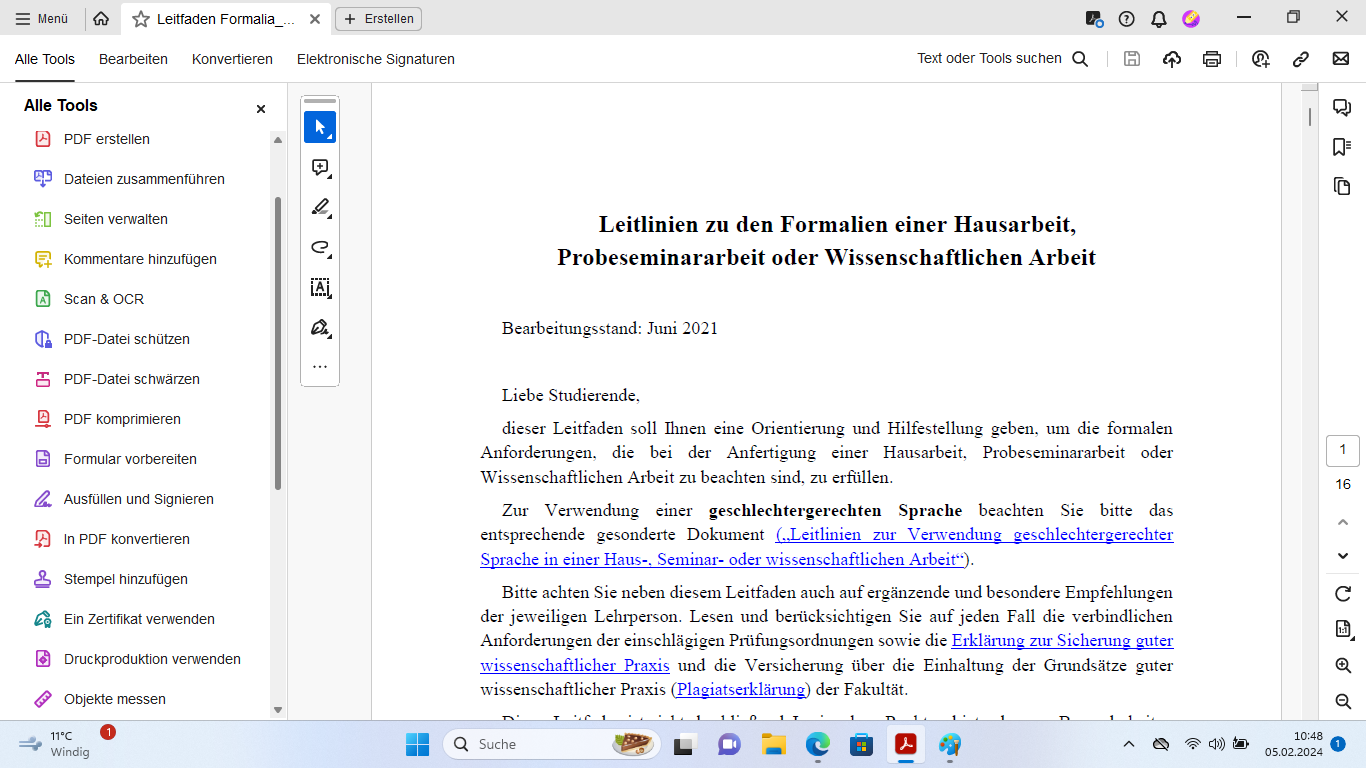
2. Schritt: Mit digitaler Unterschrift unterschreibenÖffnen Sie das zu signierende PDF in Adobe Acrobat Pro (hier werden Sie ggf. gebeten, sich bei Ihrem Adobe Konto anzumelden).
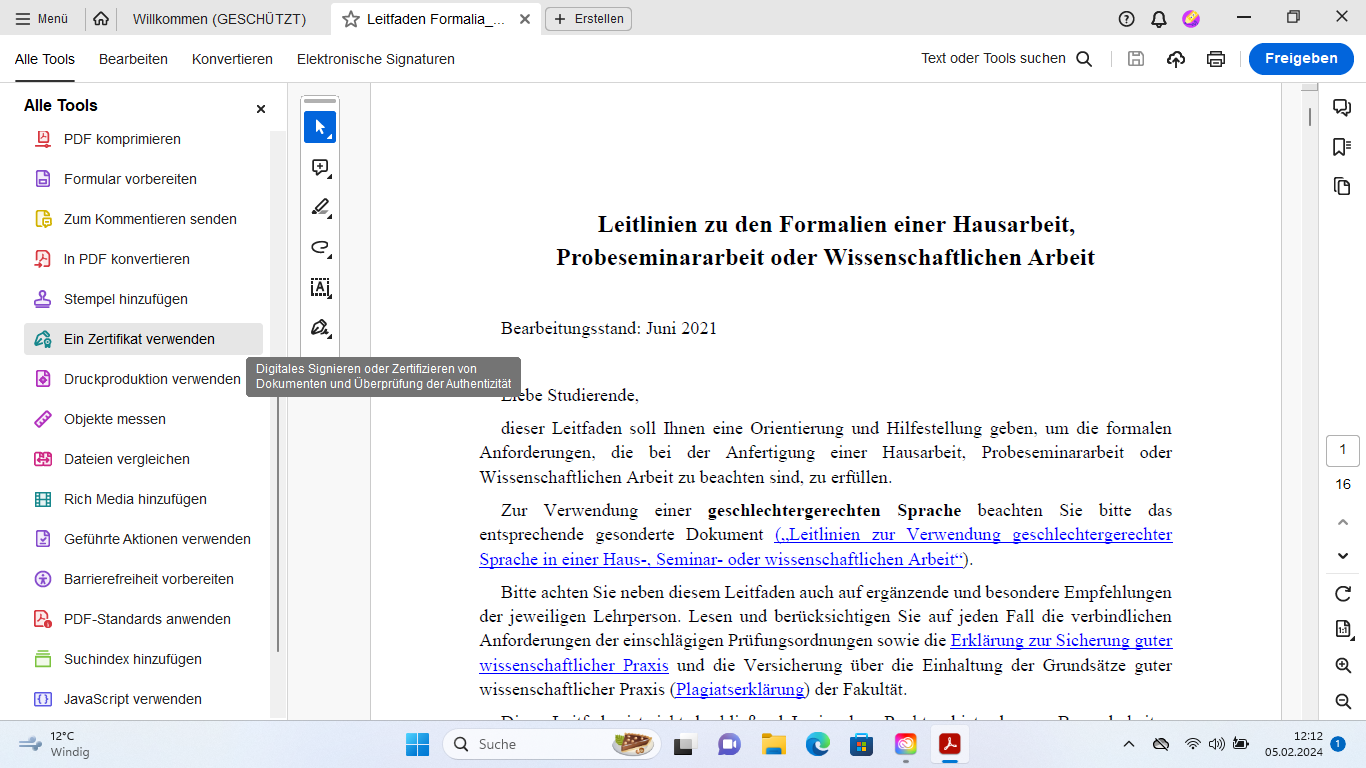
Klicken Sie "Alle Tools" → "Mehr anzeigen". Wählen Sie hier "Ein Zertifikat verwenden" aus. (ggf. müssen Sie scrollen, um die Option angezeigt zu bekommen).
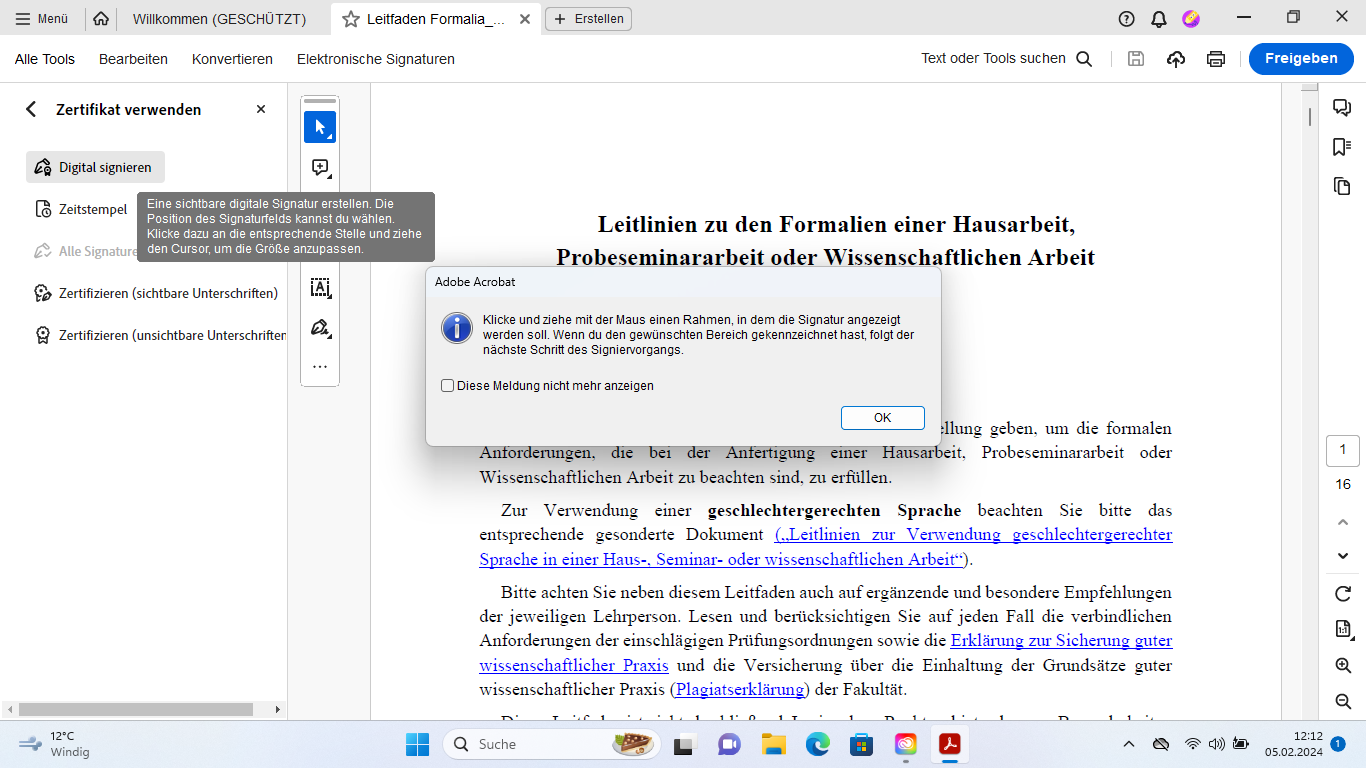
Wählen Sie aus den aufgeführten Möglichkeiten "Digital signieren" aus und ziehen Sie wie gefordert dort ein Feld, wo Sie das Dokument unterscheiben möchten.
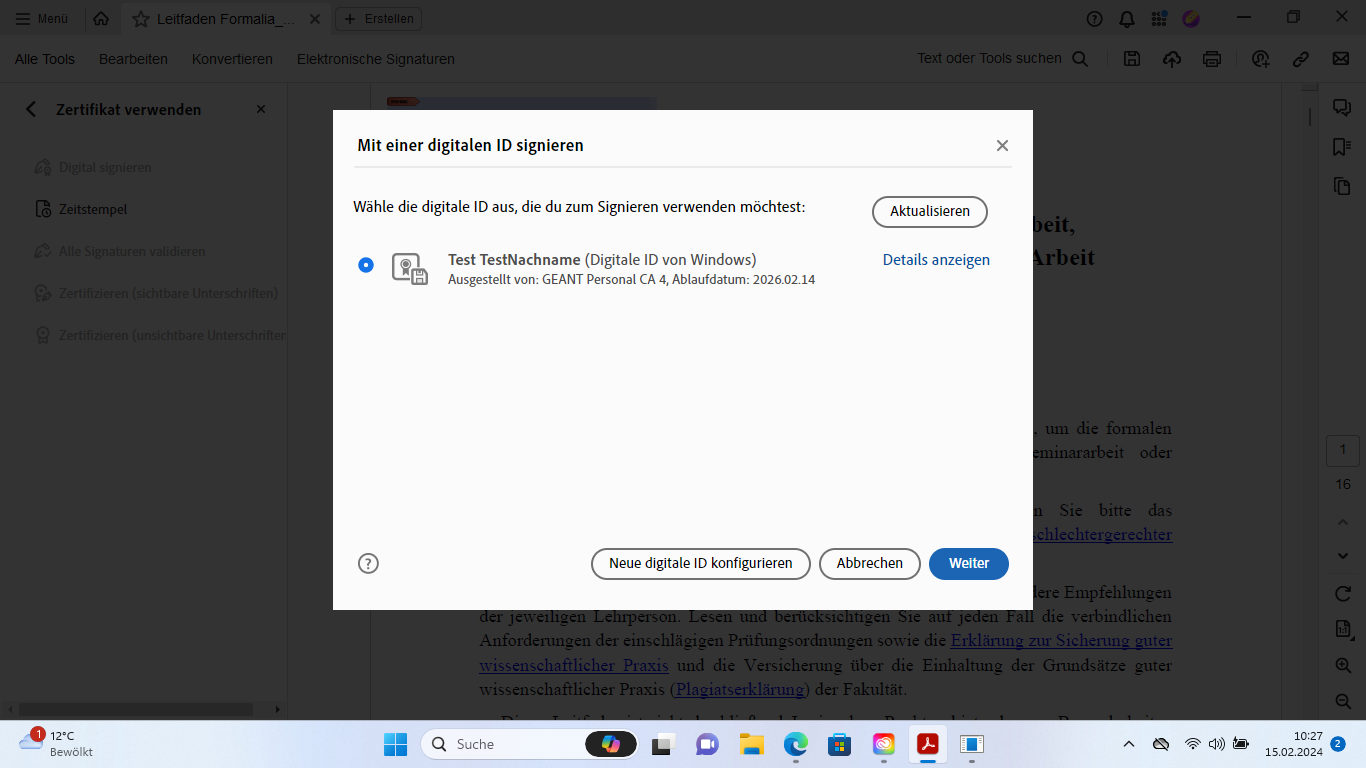
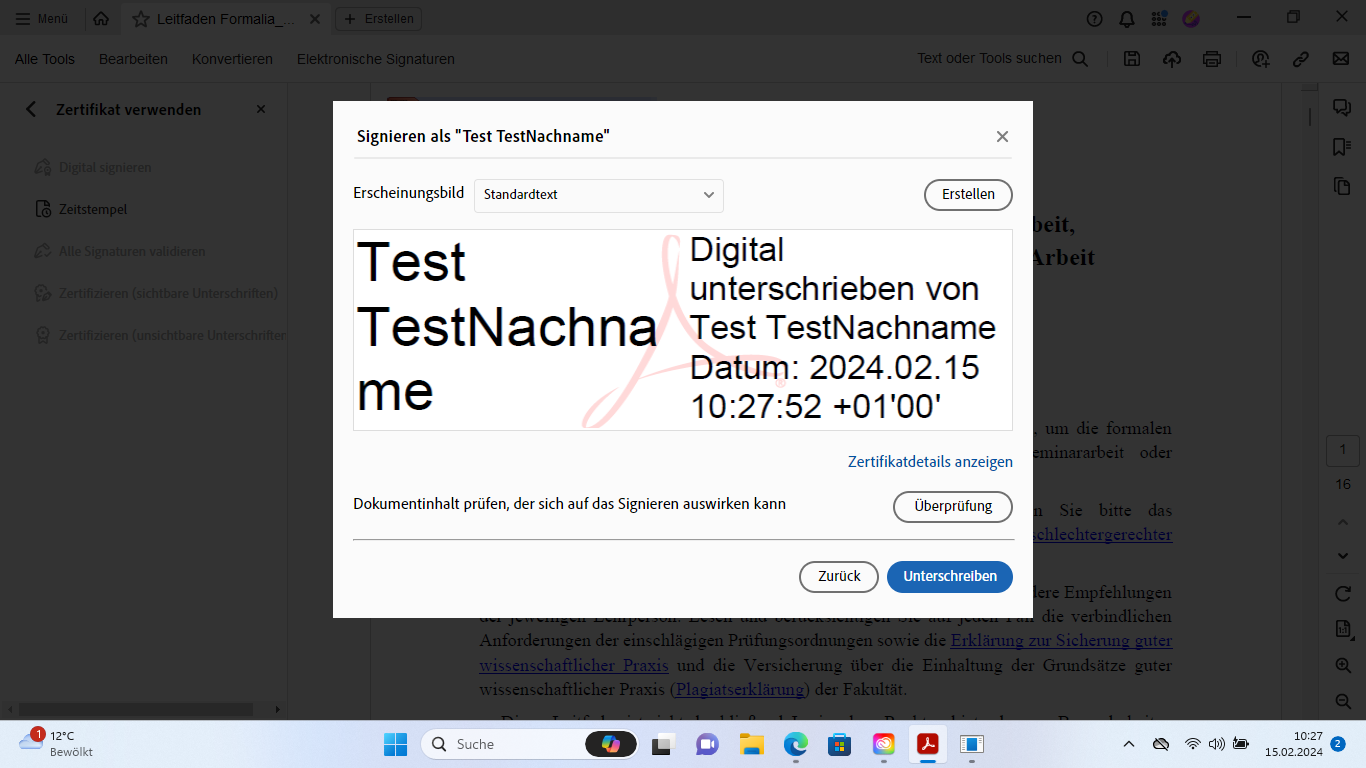
Wählen Sie nun das zuvor installierte Zertifikat aus, klicken Sie "Weiter" und "Unterschreiben".
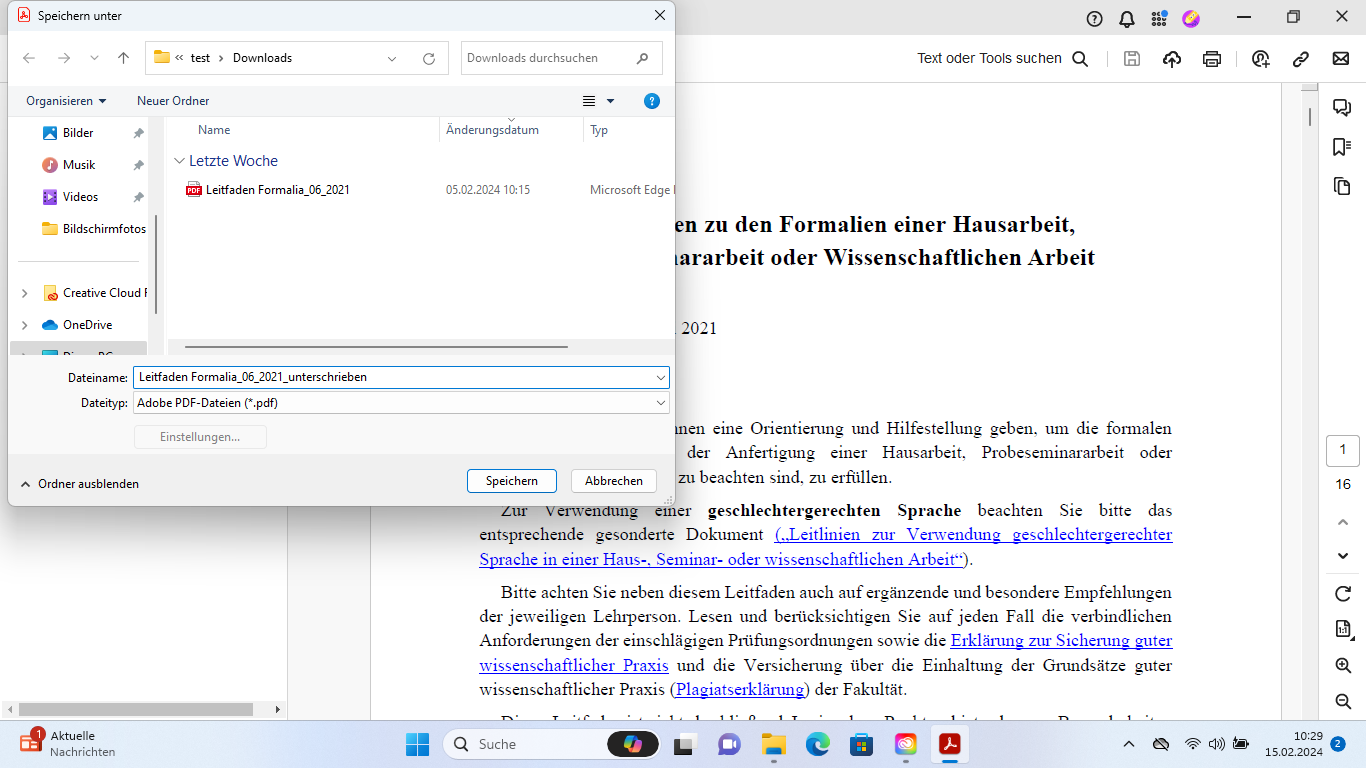
Speichern Sie anschließend das signierte Dokument ab.
|

| Englisch | |||||||||||||||||||
|---|---|---|---|---|---|---|---|---|---|---|---|---|---|---|---|---|---|---|---|
Requirements
Setting up a digital signature1. Step: Signing up for Adobe Acrobat Pro and generating a personal certificate.If you're not registered for Adobe Creative Cloud yet, follow our instructions here. If you haven't created a personal certificate with Harica yet, follow our instructions here. After receiving and downloading your personal certificate it has to be installed first. To do this use these instructions: HARICA Zertifikat Installation (Windows) or macOS - Zertifikat Installation
2. Step: Digitally sign a PDFOpen the PDF you want to sign digitally in Adobe Acrobat Pro (it's possible you will be asked to sign into your Adobe account).
Choose "All tools" → "View more". Now, choose "Use a certificate" (it's possible you have to scroll down to see this option).
Out of the listed options, choose "Digitally sign" and place the signature field where you want to sign.
Now, choose the certificate you installed, click "Continue" and "Sign".
Finally, save your signed document.
|
...