|
|
|
Projektion |
Projection |
|
|
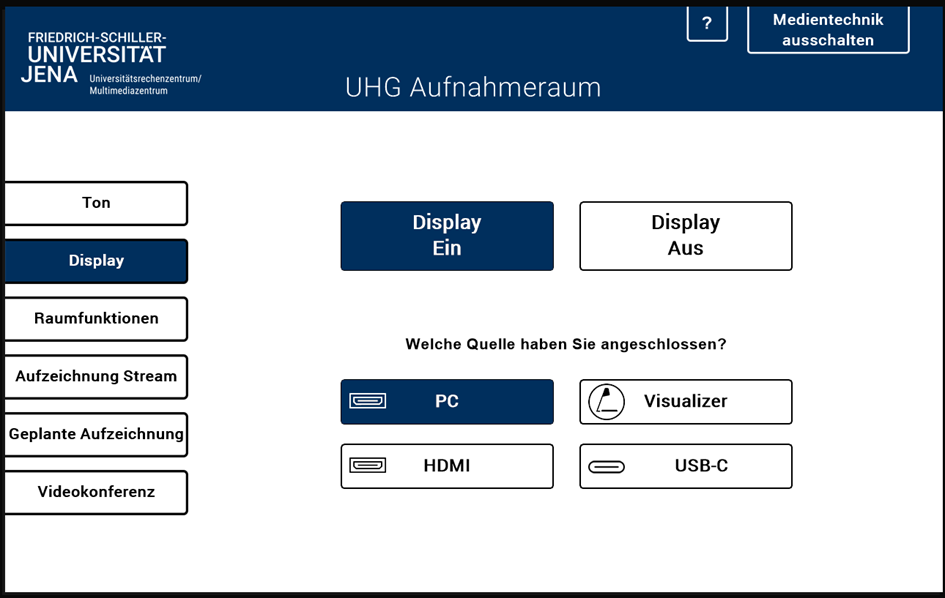
Hier schalten Sie das Smartboard an dem Touchpanel ein und wählen Ihre Quelle aus.
|
Here you switch on the Smartboard on the touch panel and select your source.
|
Ton und Mikrofone |
Audio and microphone |
|
|
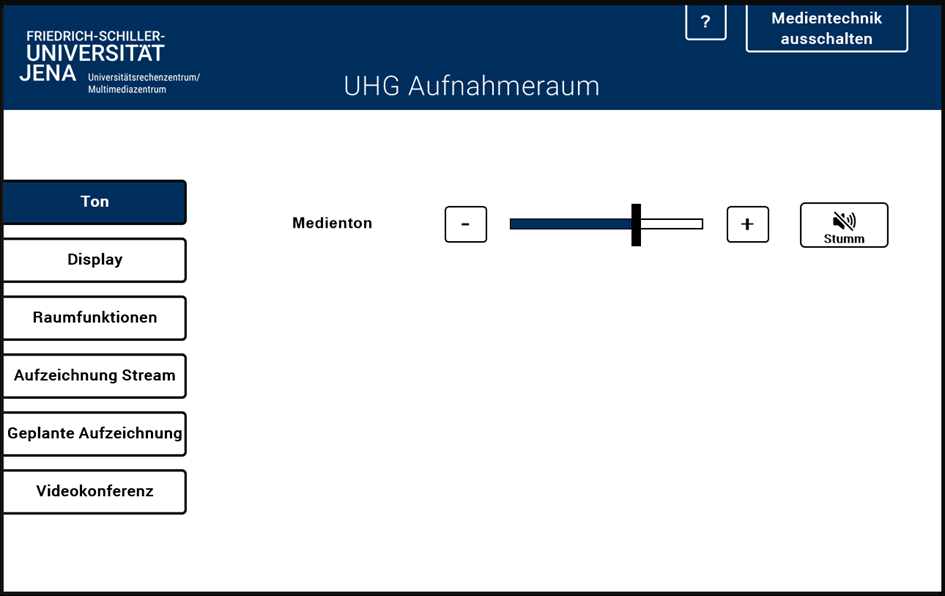
Wenn Sie in Ihrer Aufzeichnung ein Video oder eine Tonaufnahme zeigen wollen, achten Sie bitte darauf, dass der Medienton eingeschaltet ist. |
If you want to show a video or audio recording in your recording, please make sure that the media sound is switched on. |
|
|
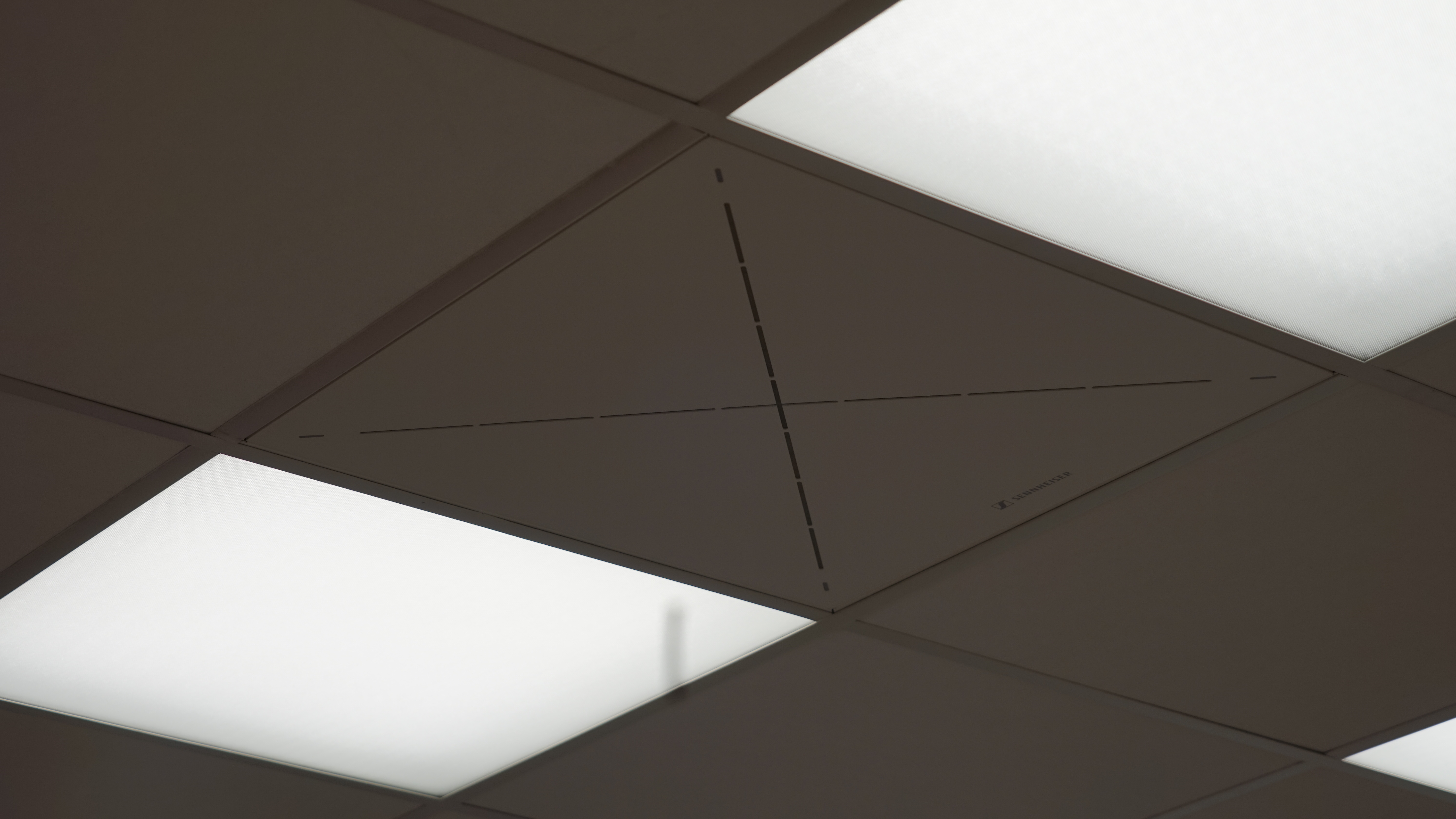
Das Mikrofon ist in der Decke eingebaut und muss nicht gesondert eingeschaltet werden. |
The microphone is built into the ceiling and does not need to be switched on separately. |
Aufzeichnung/Stream |
Recording / Stream |
|
|
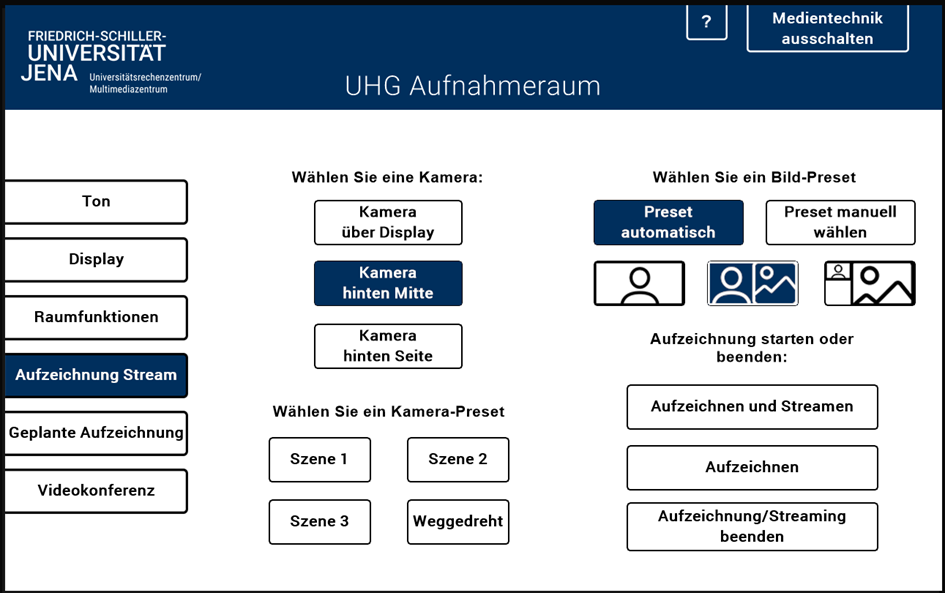
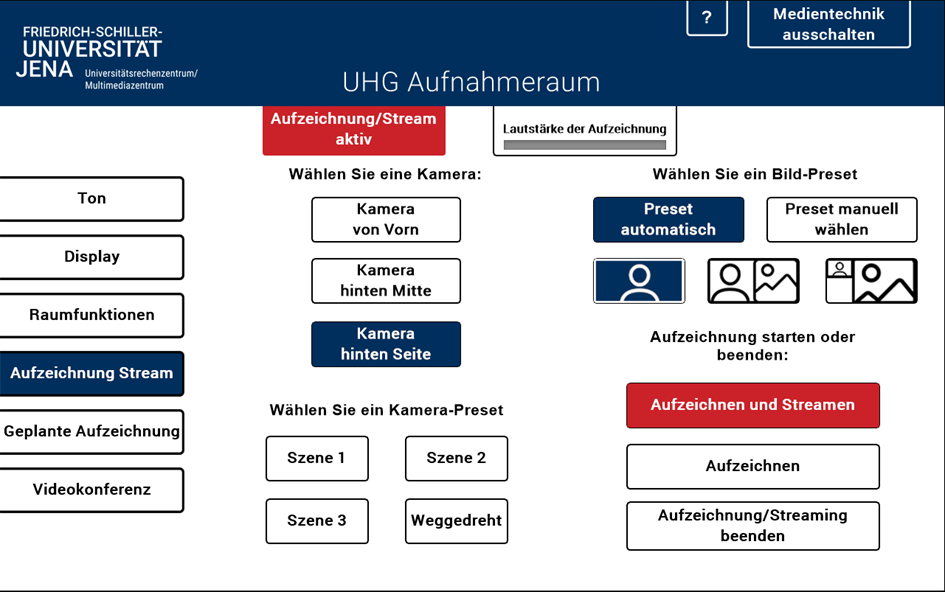
Unter dem Menüpunkt Aufzeichnung/Stream können Sie Ihre Aufnahme und Ihren Stream einstellen. Unter Bild-Preset können Sie einstellen, wie die Videoquellen im Stream angezeigt werden sollen. Wenn Sie hier Automatik ausgewählt haben, wird standartmäßig die Präsentation und das Videobild gleichgroß nebeneinander angezeigt. |
You can set your recording and stream under the Recording/Stream menu item. |
|
|
Aufzeichnung und StreamWenn Sie auf Aufzeichnen und Streamen tippen, wird der Livestream und die Aufzeichnung gestartet. Der Stream und die Aufzeichnung laufen, sobald Sie oben links ein rotes Feld sehen (Aufzeichnung/Stream aktiv). |
Recording and streaming |
|
|
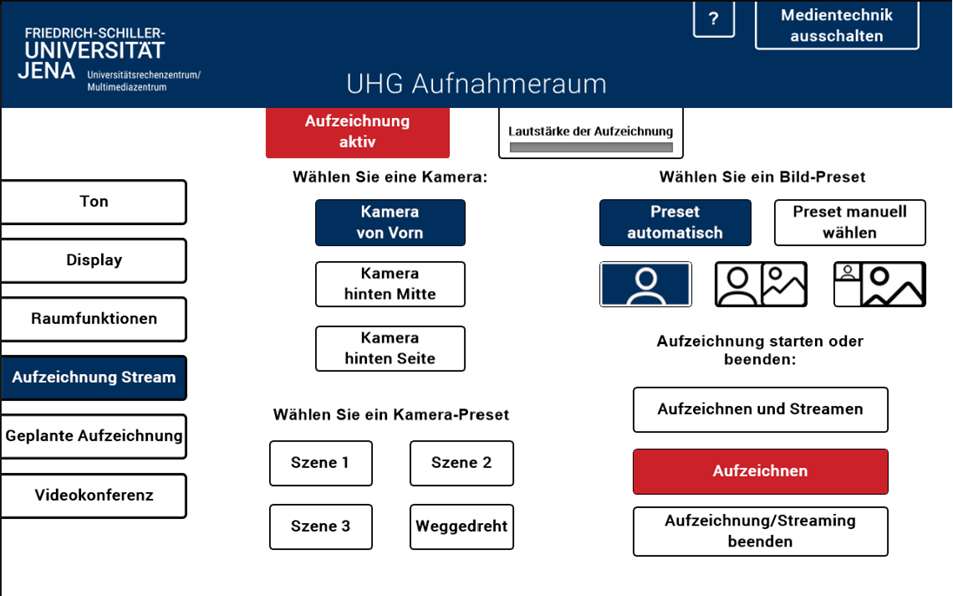
AufzeichnungWenn Sie nur aufnehmen möchten tippen Sie auf Aufzeichnung starten. Die Aufzeichnung läuft sobald der rote Button zu sehen ist (Aufzeichnung aktiv). |
Recording If you only want to record, tap Start recording. Recording starts as soon as the red button is visible (recording active). |
Videokonferenz |
Video conference |
|
|
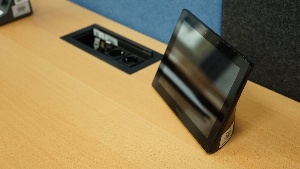
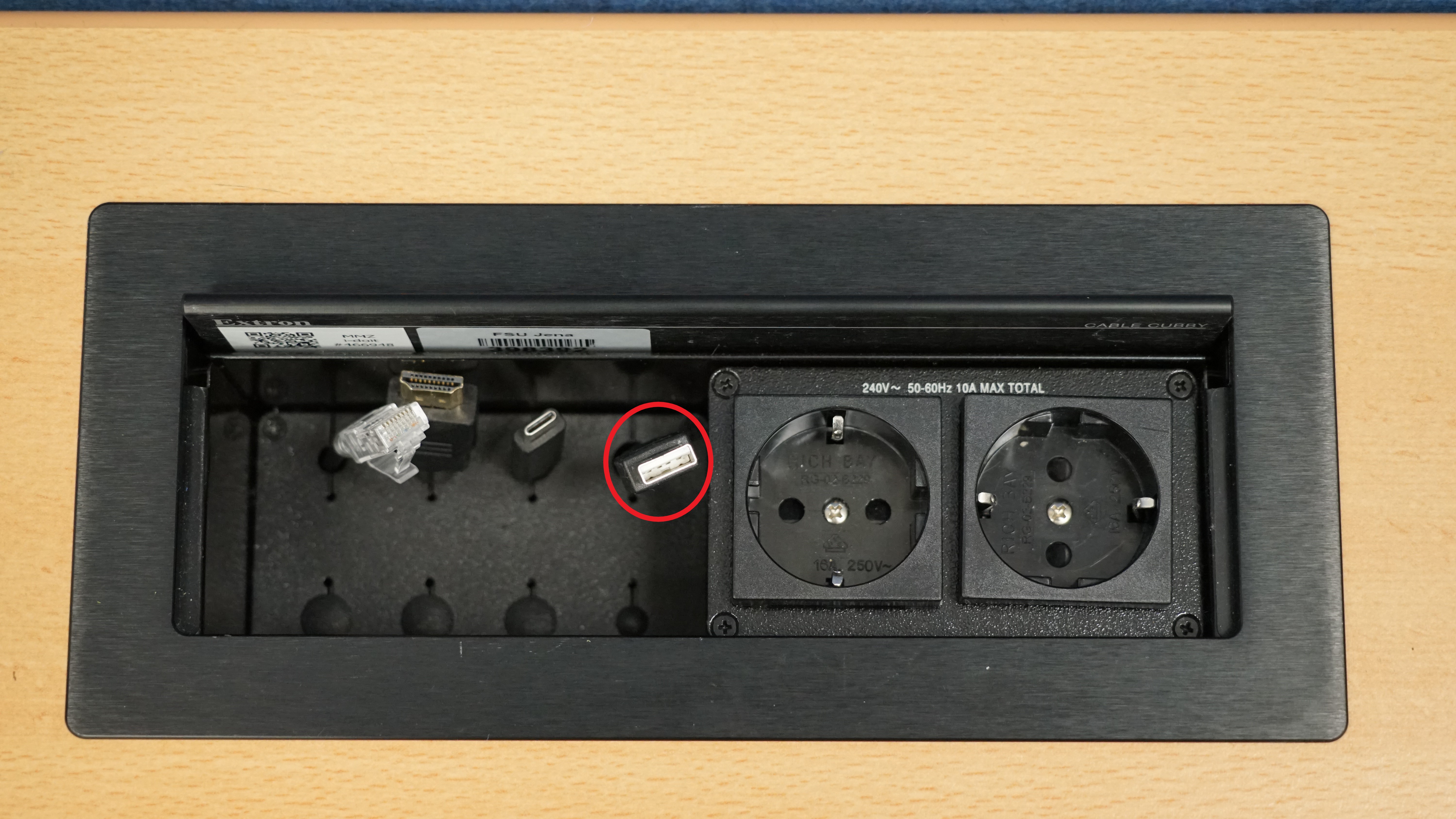
Medientechnik mit Computer verbinden Wenn Sie eine Videokonferenz durchführen möchten, verbinden Sie ihr Gerät mit dem USB-Kabel (rot markiert). |
Connecting media technology to the computer If you want to hold a video conference, connect your device with the USB cable (marked red). |
|
|
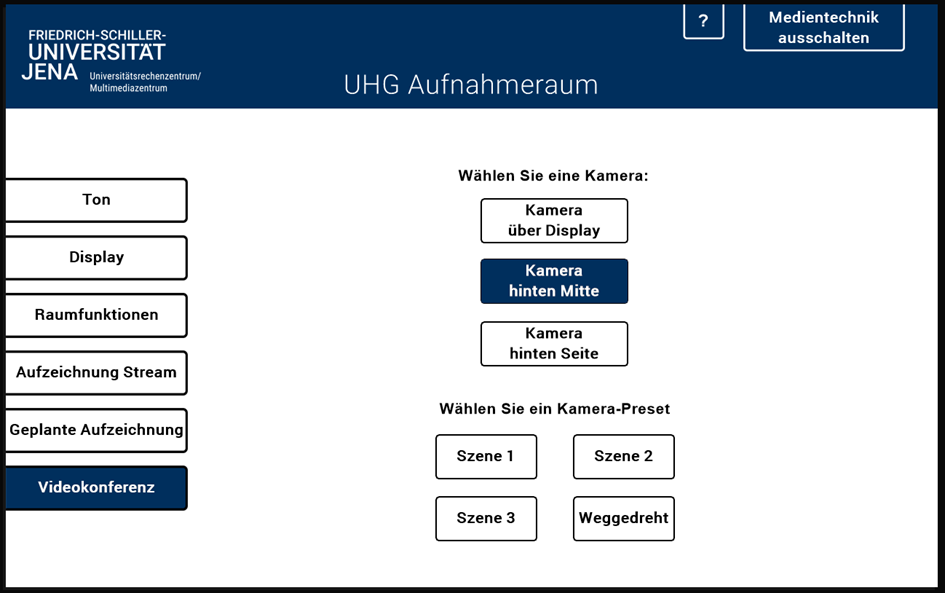
Wählen Sie die entsprechende Kamera und das Kamera-Preset aus. |
Select the corresponding camera and the camera preset. |
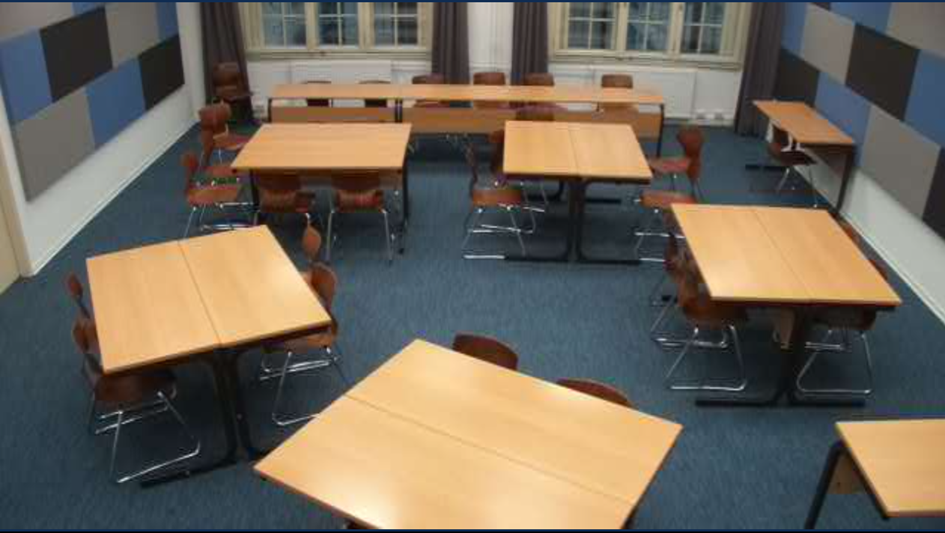
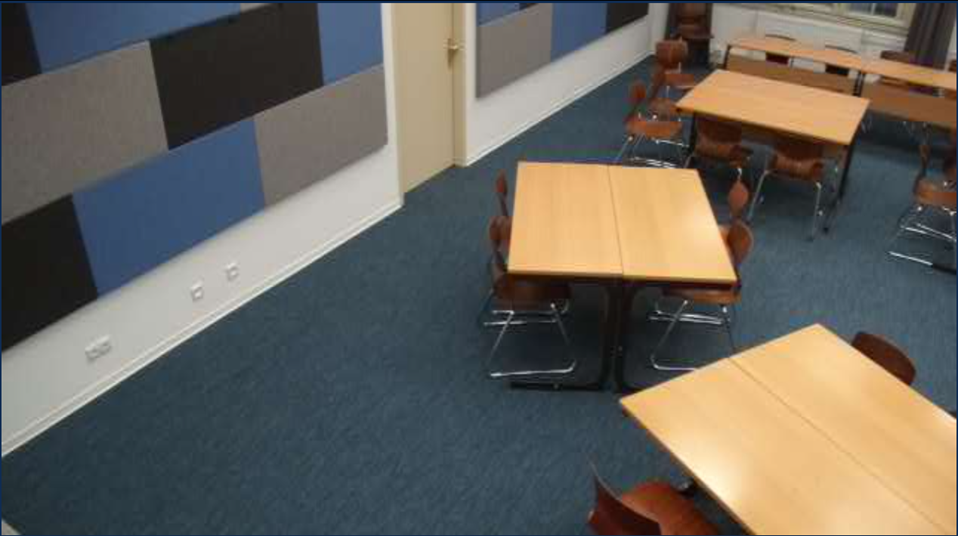
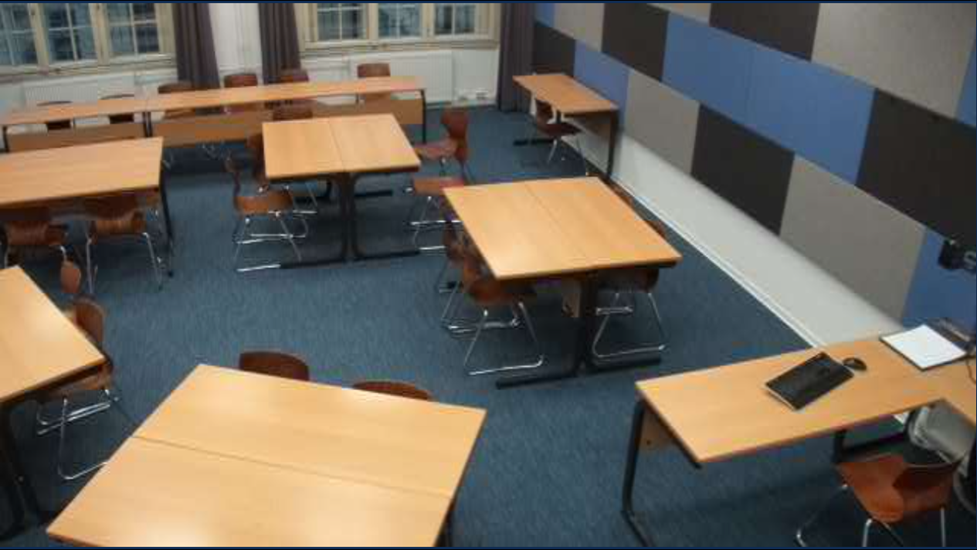
Kamera-PresetsFür die Aufzeichnung,den Stream und die Videokonferenz können Sie zwischen 9 verschiedenen Szenen wählen: |
Camera PresetsYou can choose from 9 different templates for the recording and for the stream: |
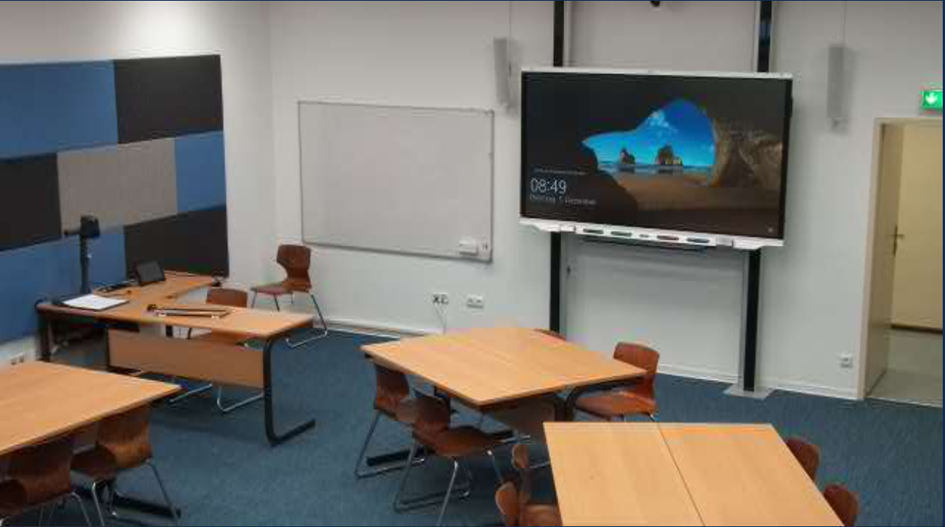
Kamera über Display Szene 1 |
Camera via display Scene 1 |
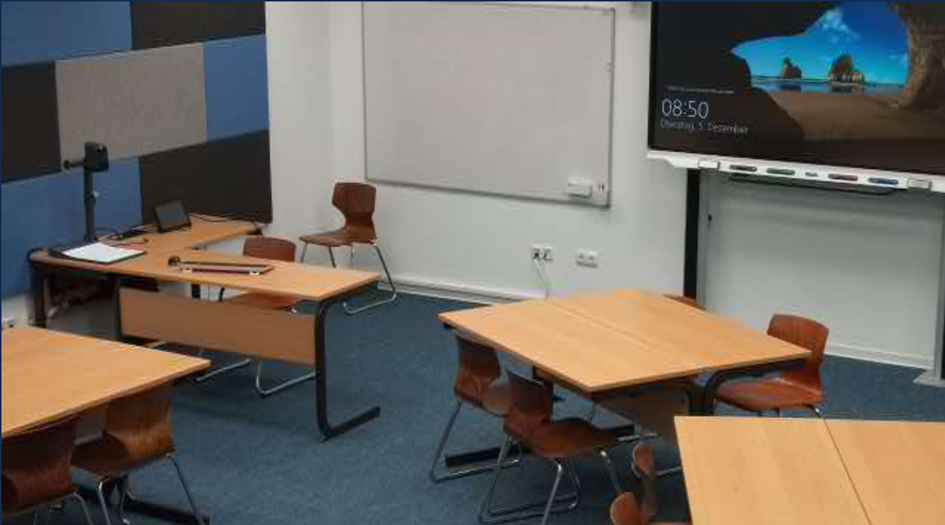
Kamera über Display Szene 2 |
Camera via display Scene 2 |
Kamera über Display Szene 3 |
Camera via display Scene 3 |
|
|
|
|
|
|
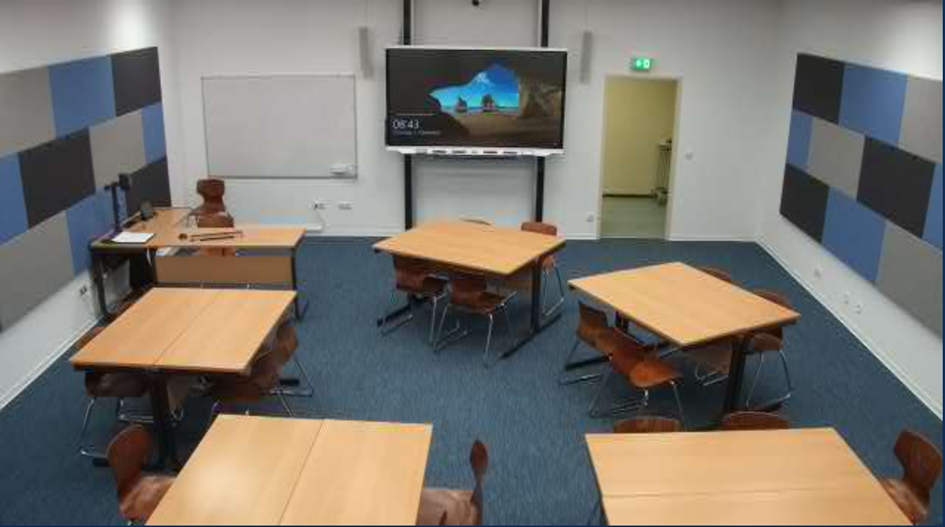
Kamera hinten Mitte Szene 1 |
Rear camera centre scene 1 |
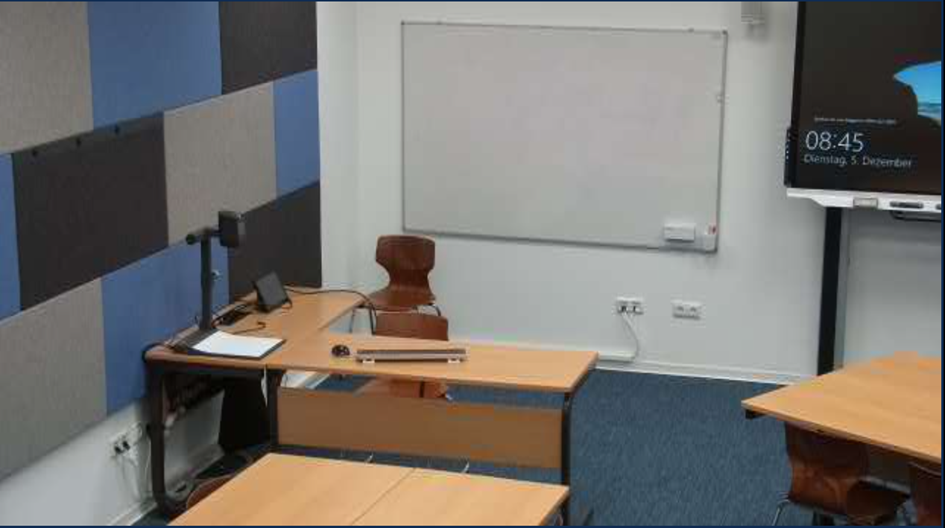
Kamera hinten Mitte Szene 2 |
Rear camera centre scene 2 |
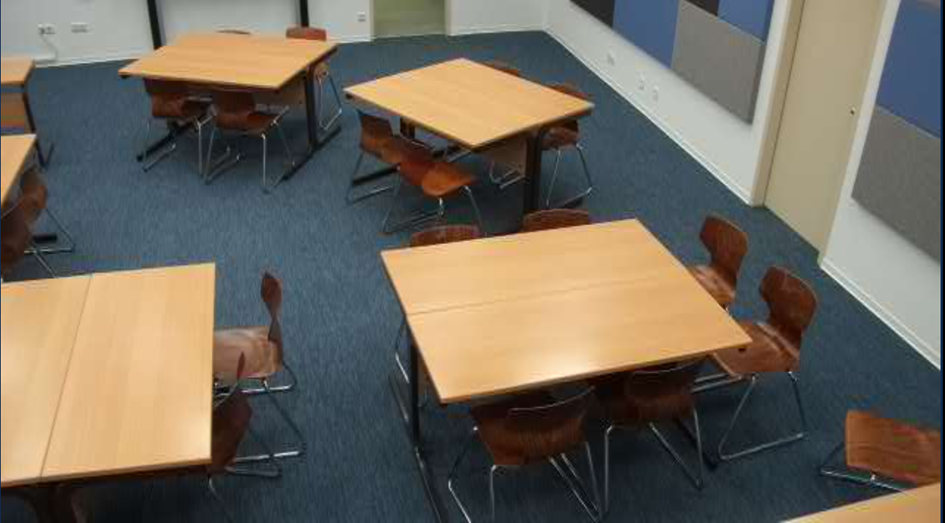
Kamera hinten Mitte Szene 3 |
Rear camera centre scene 3 |
|
|
|
|
|
|
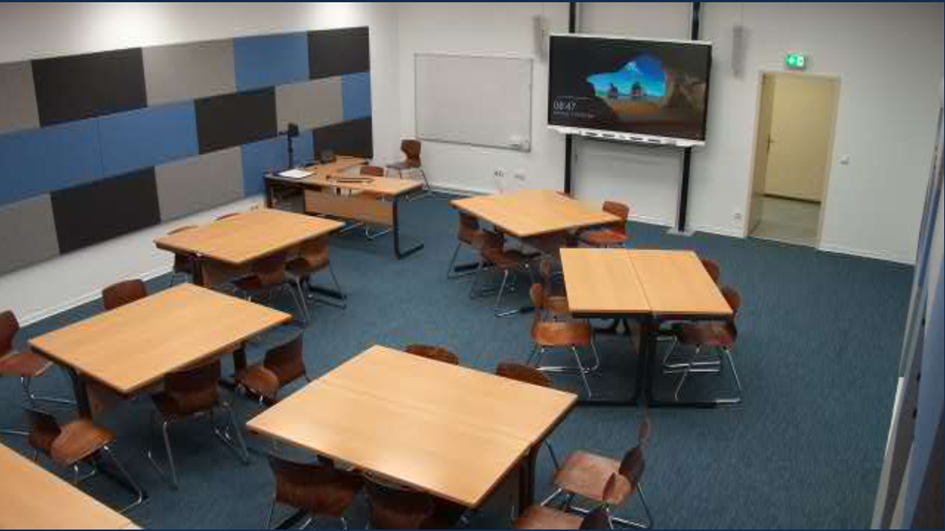
Kamera hinten Seite Szene 1 |
Camera back side Scene 1 |
Kamera hinten Seite Szene 2 |
Camera back side Scene 2 |
Kamera hinten Seite Szene 3 |
Camera back side Scene 3 |
|
|
|
|
|
|
|

|