Zusammenfassung

Für die Nutzung des Zertifikates in Outlook müssen Zertifikat und privater Schlüssel vor der Verwendung importiert werden.

Diese Anleitung richtet sich besonders an folgende Zielgruppen: -Nicht zutreffende Zielgruppen bitte löschen-

  • Studierende
  • Zweit- und Gasthörende
  • Lehrende
  • Mitarbeitende
  • Einrichtungen und Gremien (z.B. Fachschaftsräte)
  • Arbeitsbereiche / Gruppen (z.B. Projekte)
  • Sekretariate
  • Gäste der Friedrich-Schiller-Universität

Voraussetzungen

  • ein aktives Account der Universität Jena
  • Internetverbindung


Importieren des eigenen Zertifikates

1. Outlook öffnen und oben auf "Extras" klicken und dann auf "Konten".
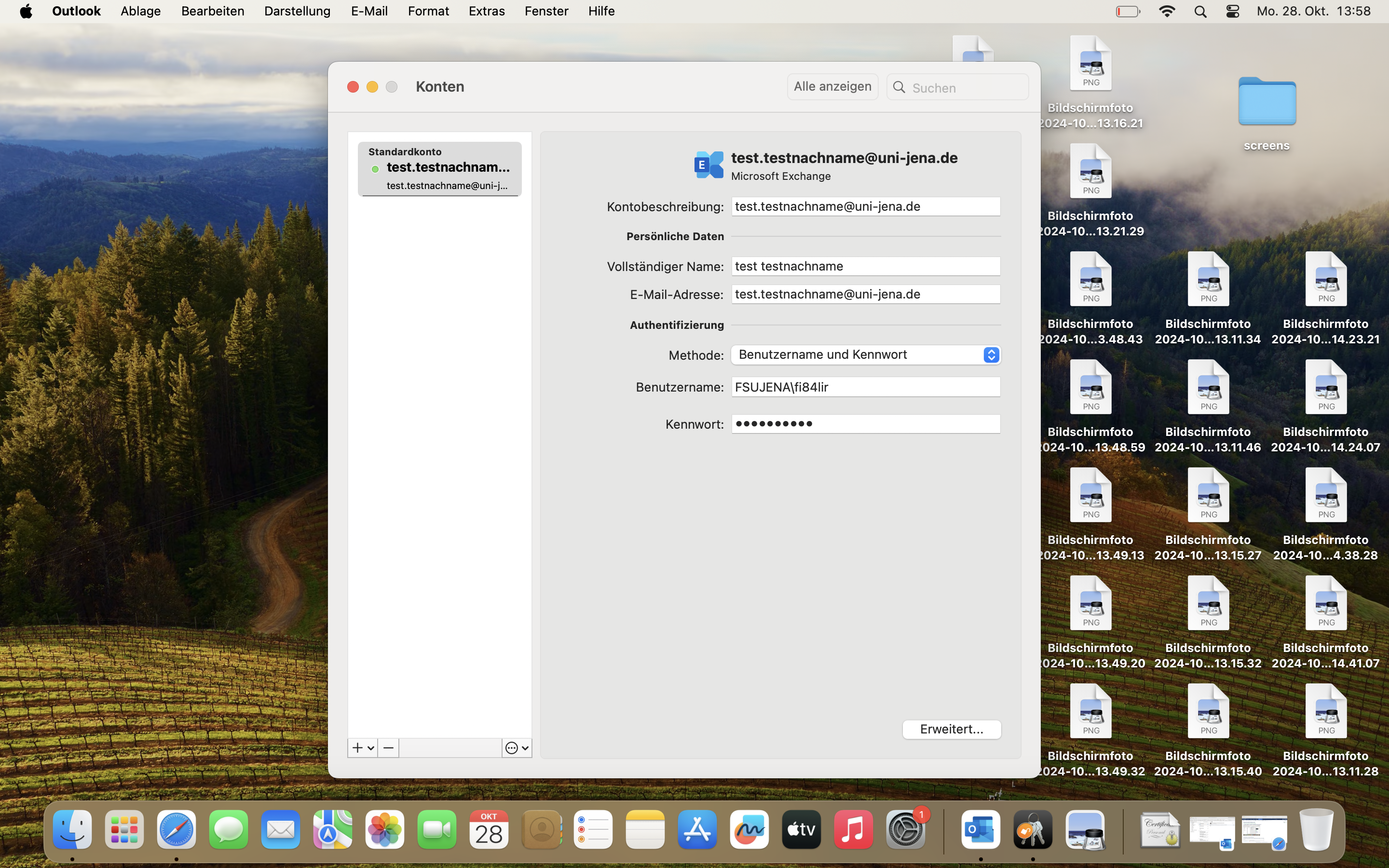

2. Unten auf "Erweitert..." klicken. Wenn sich das neue Fenster öffnet, auf den Reiter "Sicherheit" gehen.
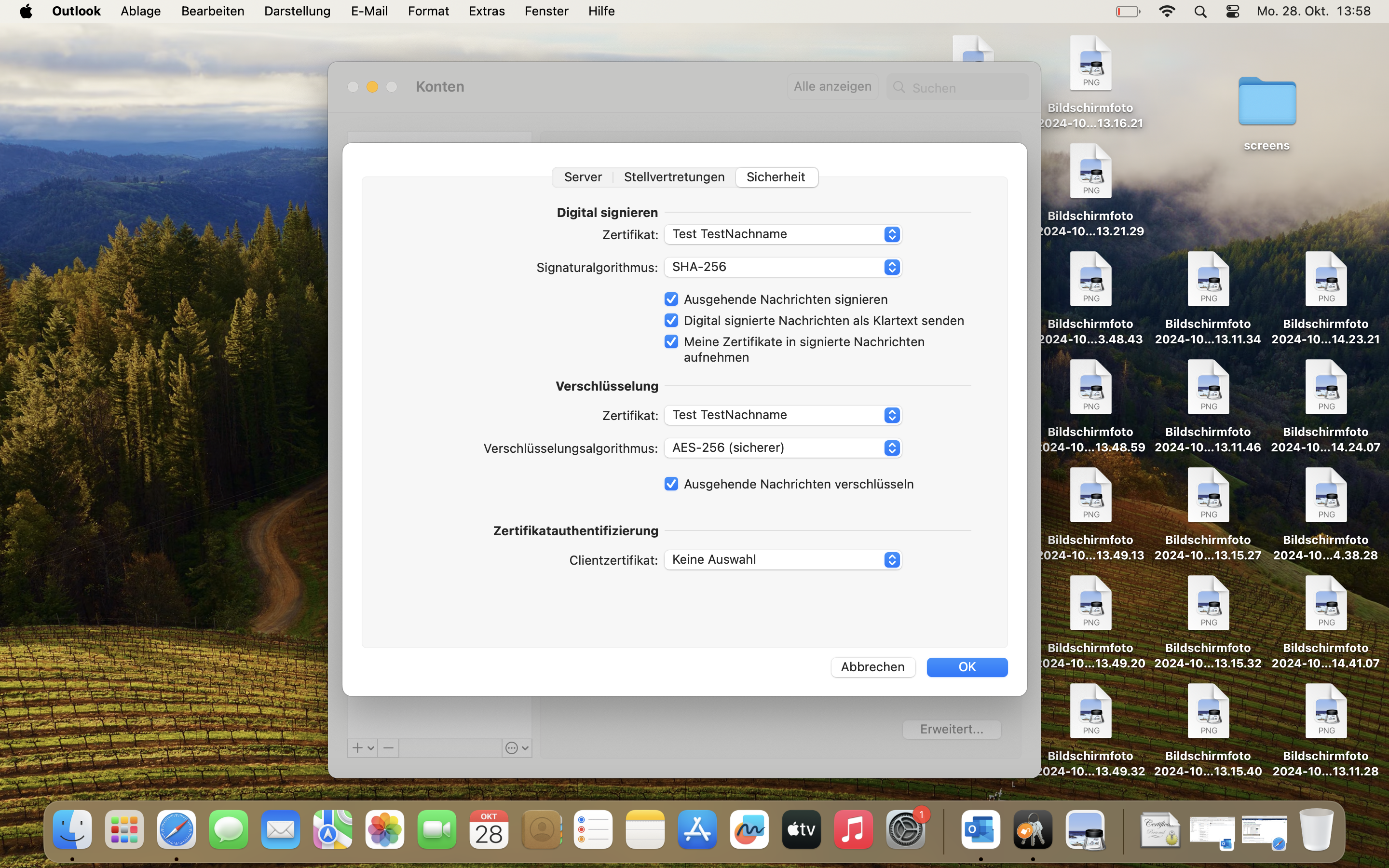

3. Bei "Digital signieren" das entsprechende Zertifikat auswählen. Typischer Weise steht hier Ihr Name drin, das unterste Zertifikat ist das aktuelle.
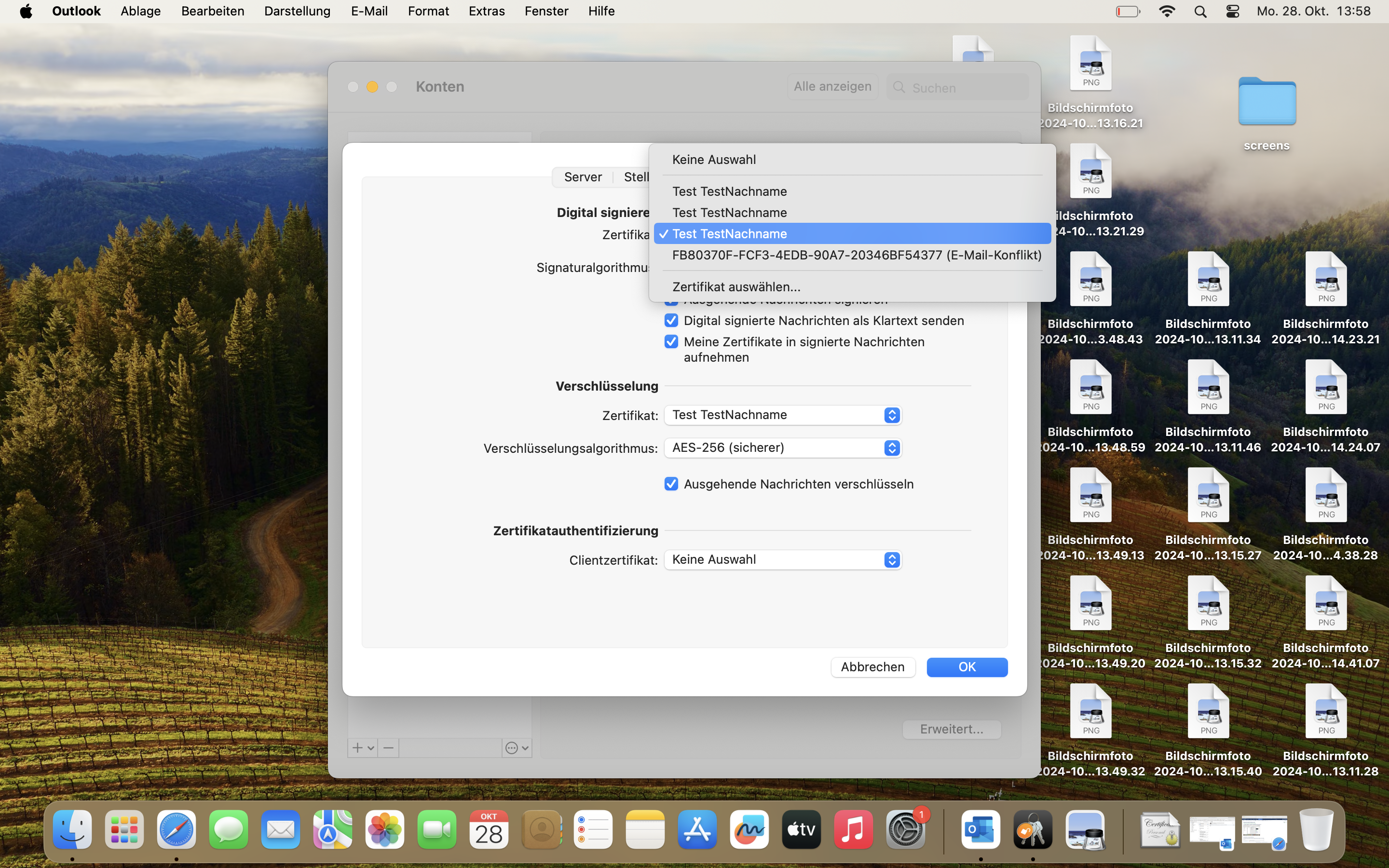
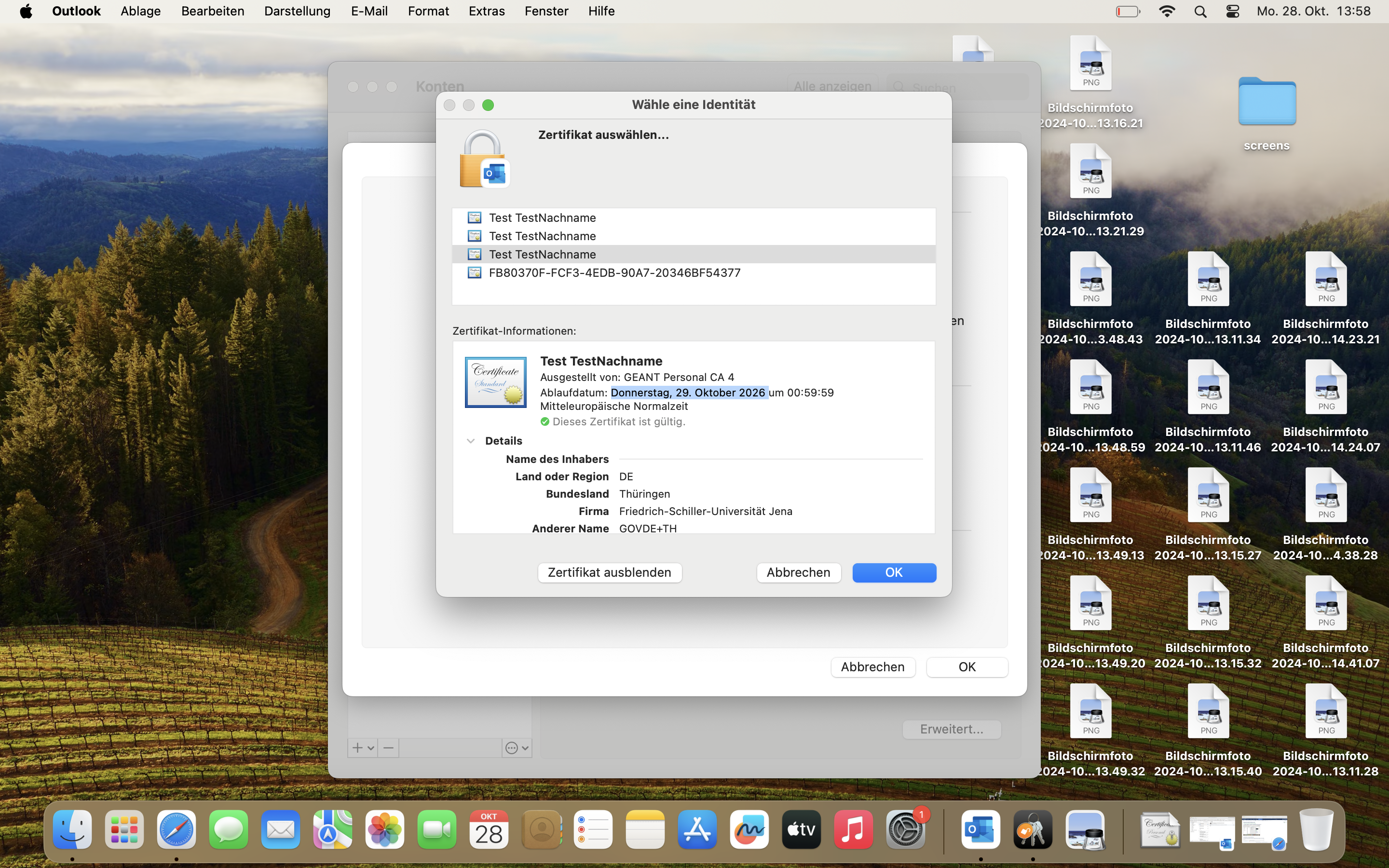
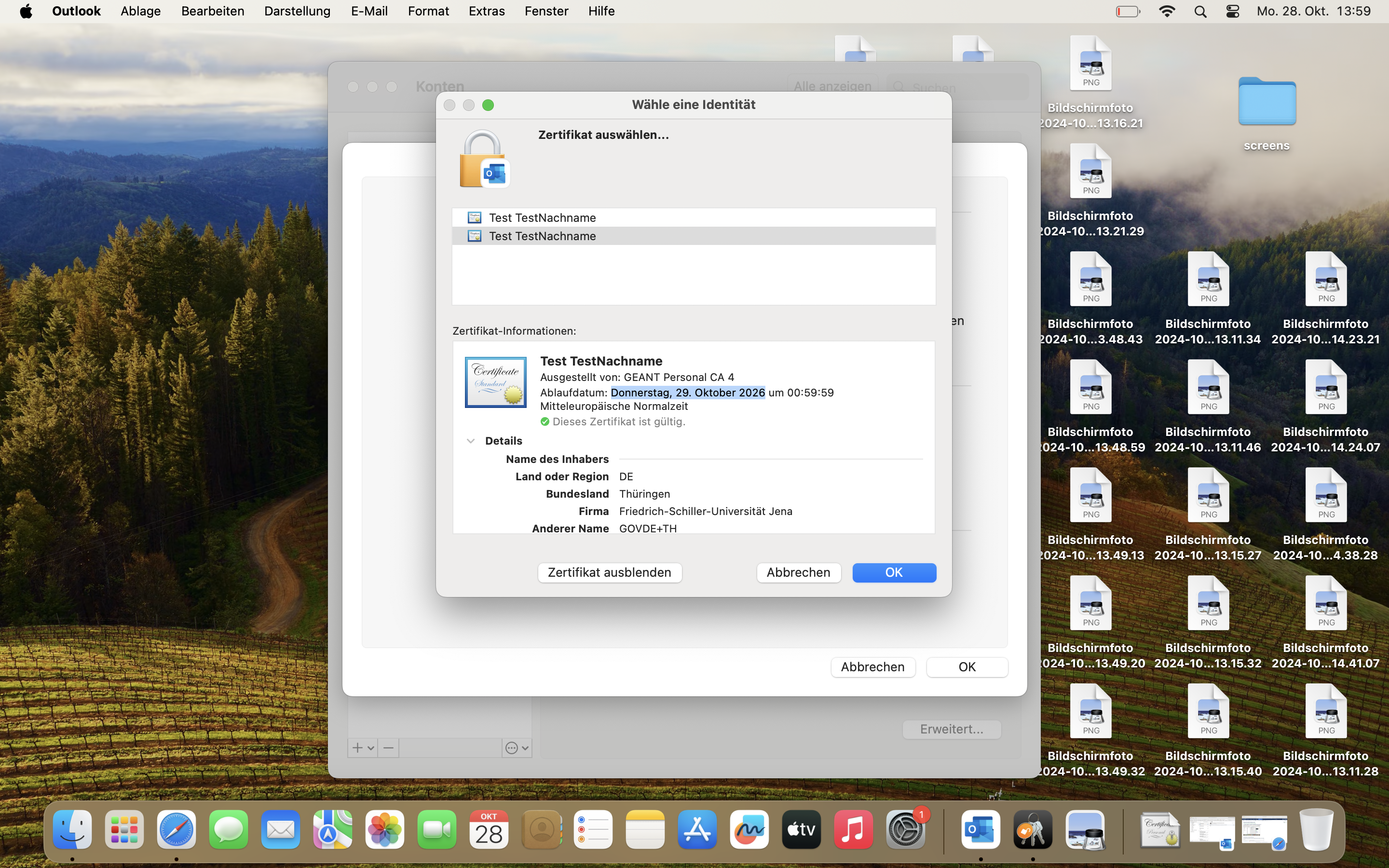
Zur Not auf "Zertifikat auswählen" klicken, dann sind im nächsten Fenster alle Zertifikate, die bisher installiert wurden, aufgelistet. Wenn Sie dann auf ein Zertifikat gehen wird das Ablaufdatum angezeigt. Daran erkennen Sie das aktuelle Zertifikat, welches Sie auswählen müssen.

4. Bei "Verschlüsselung" wieder das entsprechende Zertifikat auswählen. Es trägt normalerweise Ihren Namen, das untere ist aktuell.
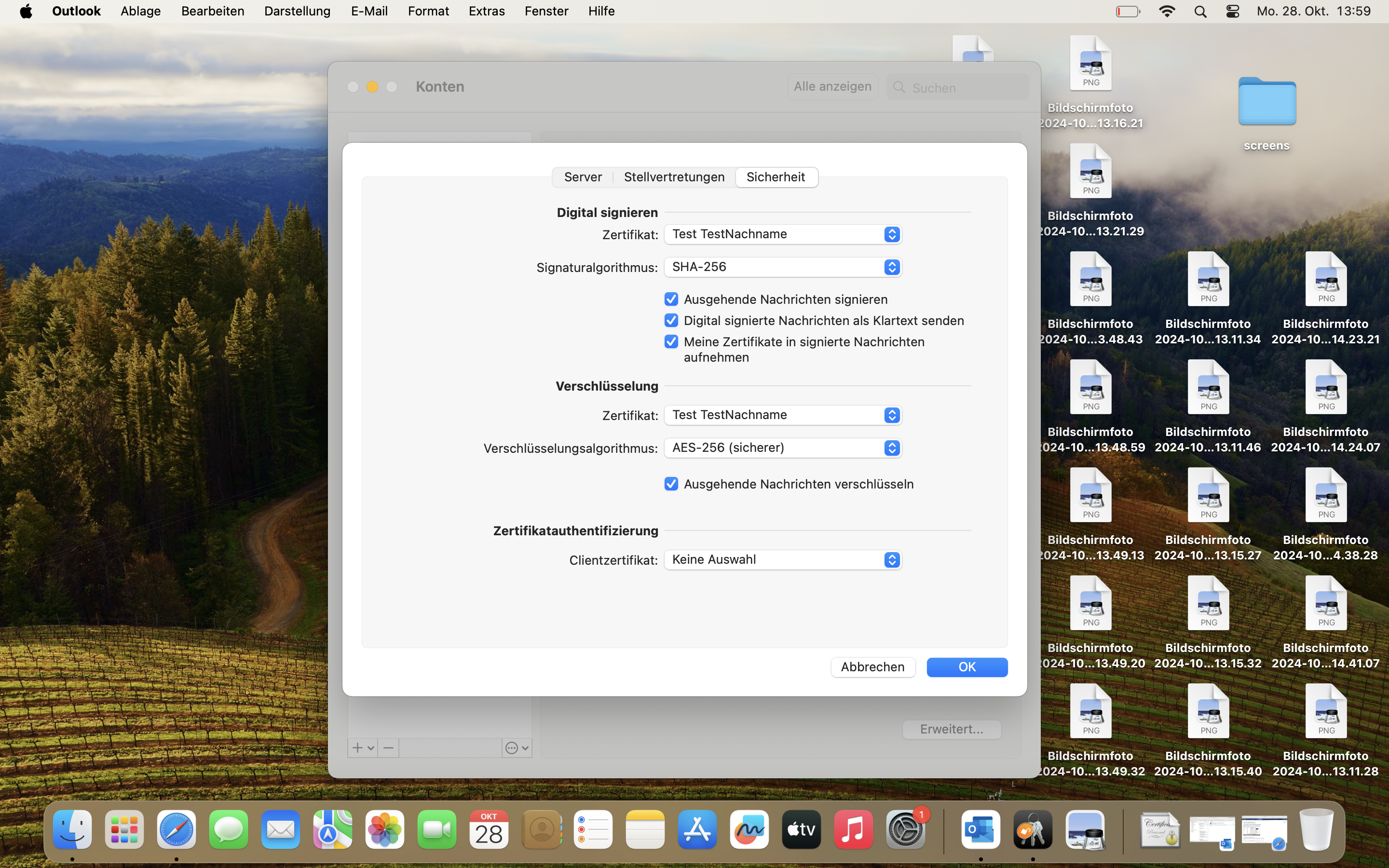
Zur Not auf "Zertifikat auswählen" klicken, dann sind im nächsten Fenster alle Zertifikate, die bisher installiert wurden, aufgelistet. Wenn Sie dann auf ein Zertifikat gehen wird das Ablaufdatum angezeigt. Daran erkennen Sie das aktuelle Zertifikat, welches Sie auswählen müssen.

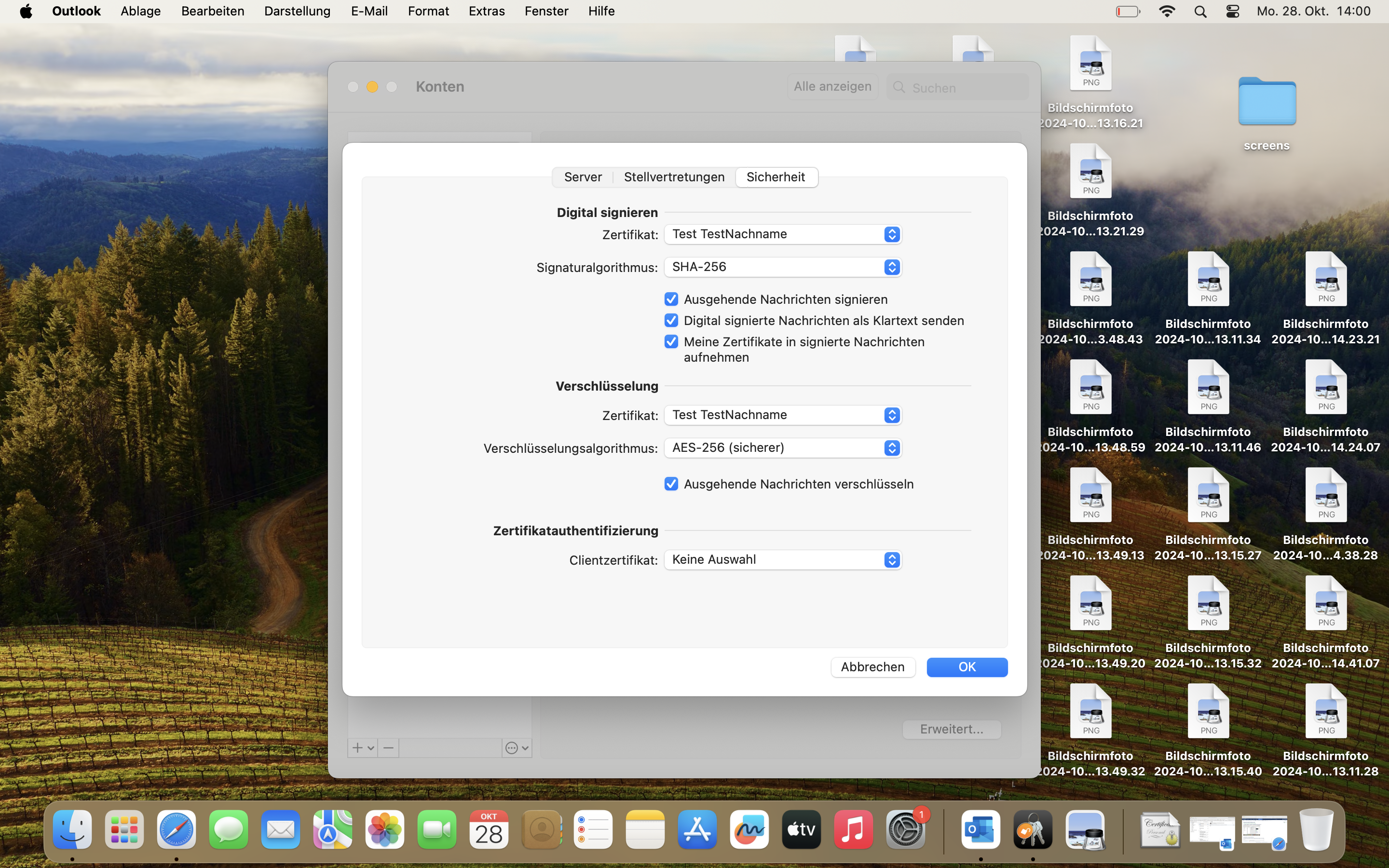
5. Nochmal alle Einträge und Haken abgleichen und dann auf "ok" klicken.

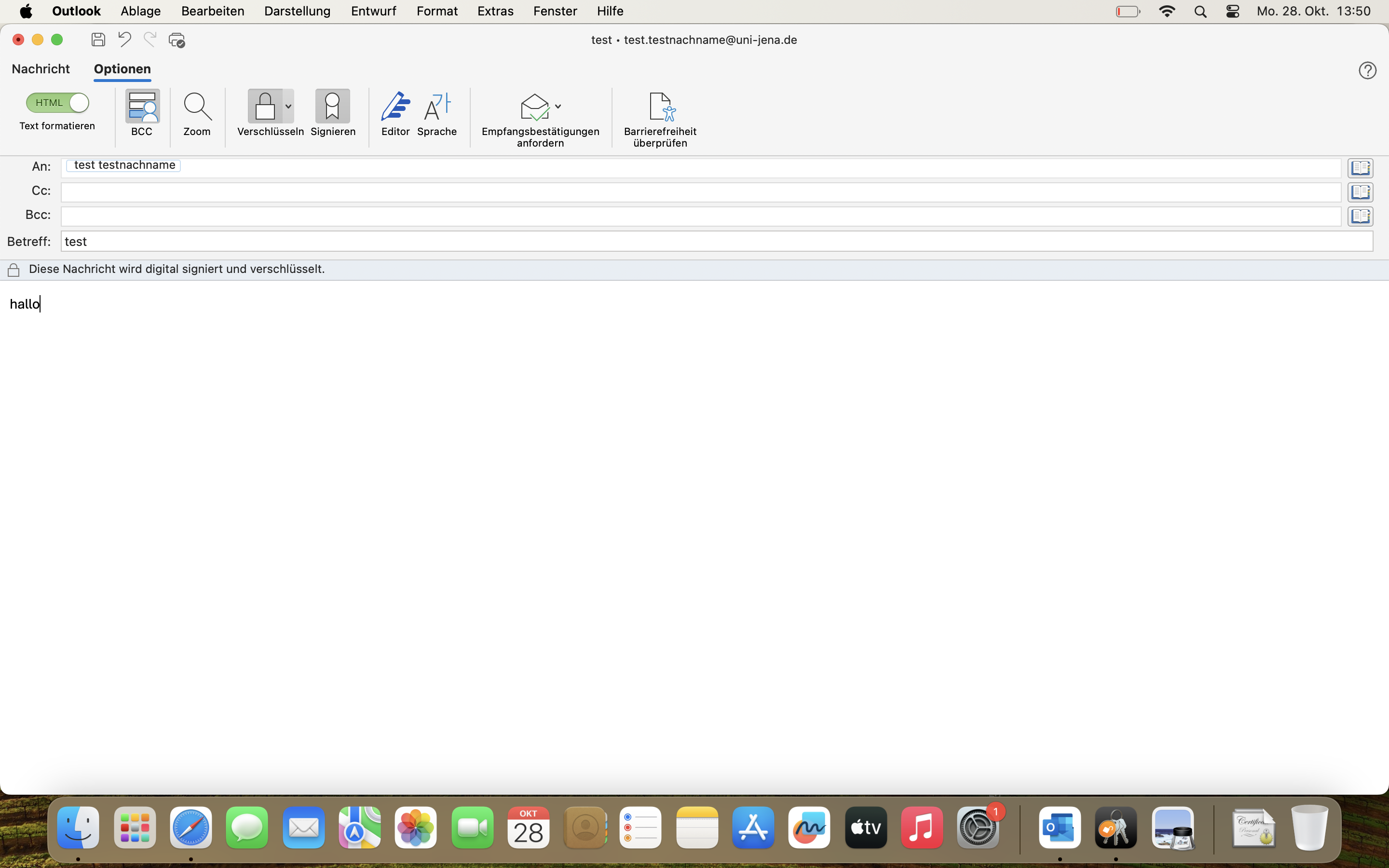
6. Email schreiben und auf "Optionen" gehen um die Mail zu Signieren/Verschlüsseln.

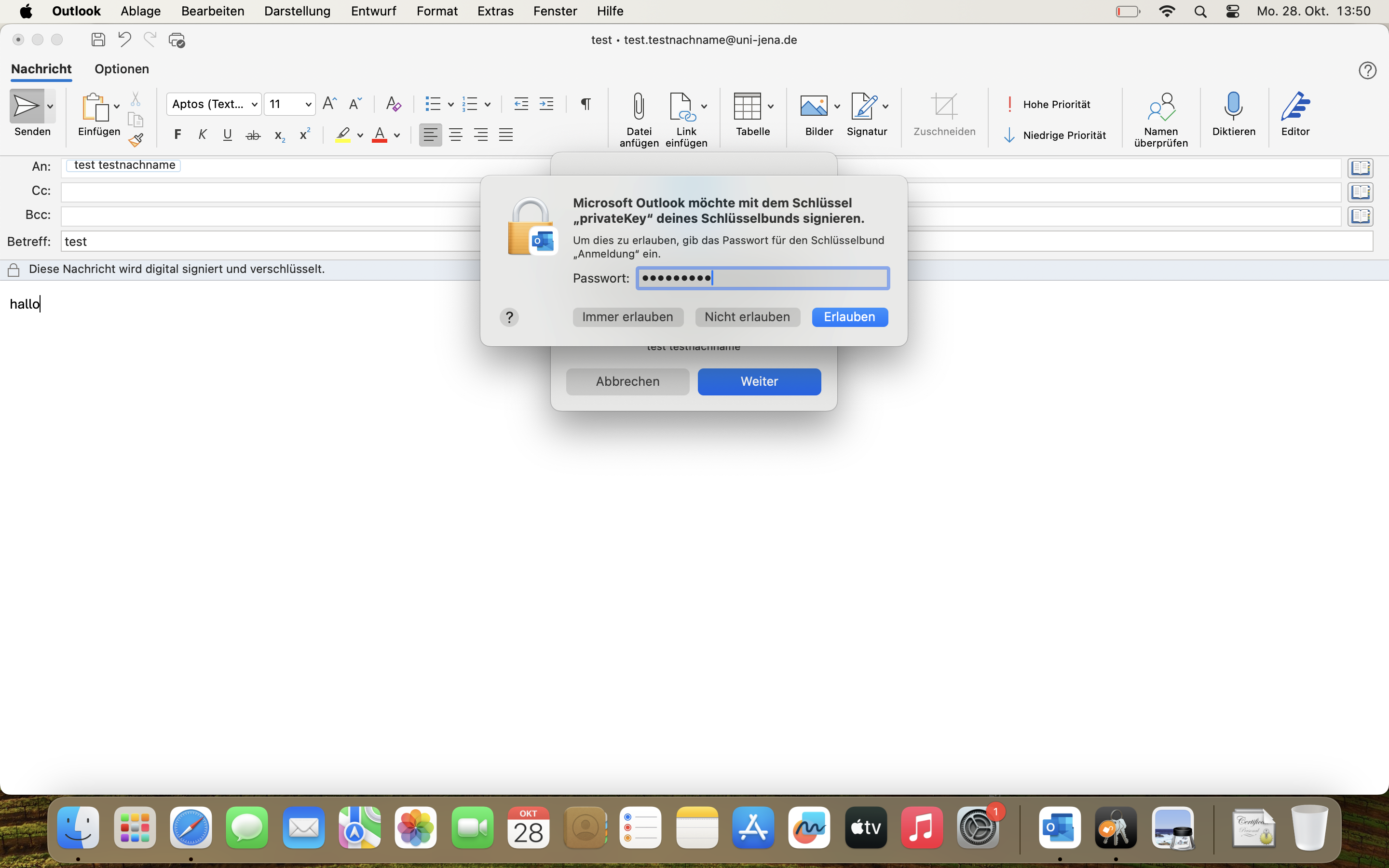
7. Falls am Ende eine Abfrage zum Passkey gemacht wird, dann einfach das Passwort des Mac-Accounts eingeben und am einfachsten auf "Immer erlauben" klicken.
Titel: "Zertifikate in E-Mail-Programmen am Beispiel von Outlook (MacOS)"

Stand: 11.11.2024


Summary

To use the certificate in Outlook, the certificate and private key must be imported before use.

These instructions are particularly aimed at the following target groups: -Nicht zutreffende Zielgruppen bitte löschen-

  • students
  • Second and guest listeners
  • teachers
  • employees
  • Institutions and committees (e.g. student councils)
  • Work areas / groups (e.g. projects)
  • Secretariats
  • Guests of the Friedrich Schiller University

Requirements

  • an active account at the University of Jena
  • Internet connection


Importing your own certificate

1. Open Outlook and click on "Tools" at the top and then on "Accounts".


2. Click on "Advanced..." below. When the new window opens go to "Security" at the top.


3. Select the appropriate certificate under “Digitally sign”. Typically your name is in there and the bottom is the most recent.

If necessary, press “Select certificate” and then all certificates that have been applied for so far will be listed in the next window. If you then go to a certificate, the expiry date will be displayed. This shows you the current certificate that you need to select.


4. Under “Encryption” select the appropriate certificate again. Typically your name is in there and the bottom is the most recent.

If necessary, press “Select certificate” and then all certificates that have been applied for so far will be listed in the next window. If you then go to a certificate, the expiry date will be displayed. This shows you the current certificate that you need to select.


5. Compare all entries and checkmarks again and then click “ok”.


6. Write an email and go to “Options” to sign/encrypt the email.


7. If you are asked for the passkey at the end, simply enter the password for the Mac account and, ideally, click on "Always allow".

Title: "Zertifikate in E-Mail-Programmen am Beispiel von Outlook (MacOS)"

last updated: 11.11.2024