Zusammenfassung

Hier wird beschrieben wie man das Deutschland Semesterticket ab WiSe 2024/25 für sich beantragen kann. Lade bitte die Mein Jena app im Appstore/Playstore herunter.

Diese Anleitung richtet sich besonders an folgende Zielgruppen: -Nicht zutreffende Zielgruppen bitte löschen-

  • Studierende

Voraussetzungen

  • ein aktiven Account der Universität Jena
  • Internetverbindung


Führen Sie diese Schritte nicht mehrfach aus! Gültig sind ausschließlich die zwei zuletzt heruntergeladenen Zertifikate.

Ein Zertifikat ist nicht austauschbar. Mails, welche mit einem Zertifikat verschlüsselt worden sind, können nur mit diesem wieder entschlüsselt werden. Verlieren Sie Ihr zuvor verwendetes Zertifikat, können Signaturen nicht mehr verifiziert und verschlüsselte Elemente nicht mehr entschlüsselt werden. Sichern Sie es daher auf Ihrem Home-Laufwerk oder auf einem verschlüsselten USB-Stick. Merken Sie sich Ihr vergebenes Passwort für das Zertifikat oder bewahren Sie es an einem sicheren Ort auf.


1. Schritt: Website aufrufen


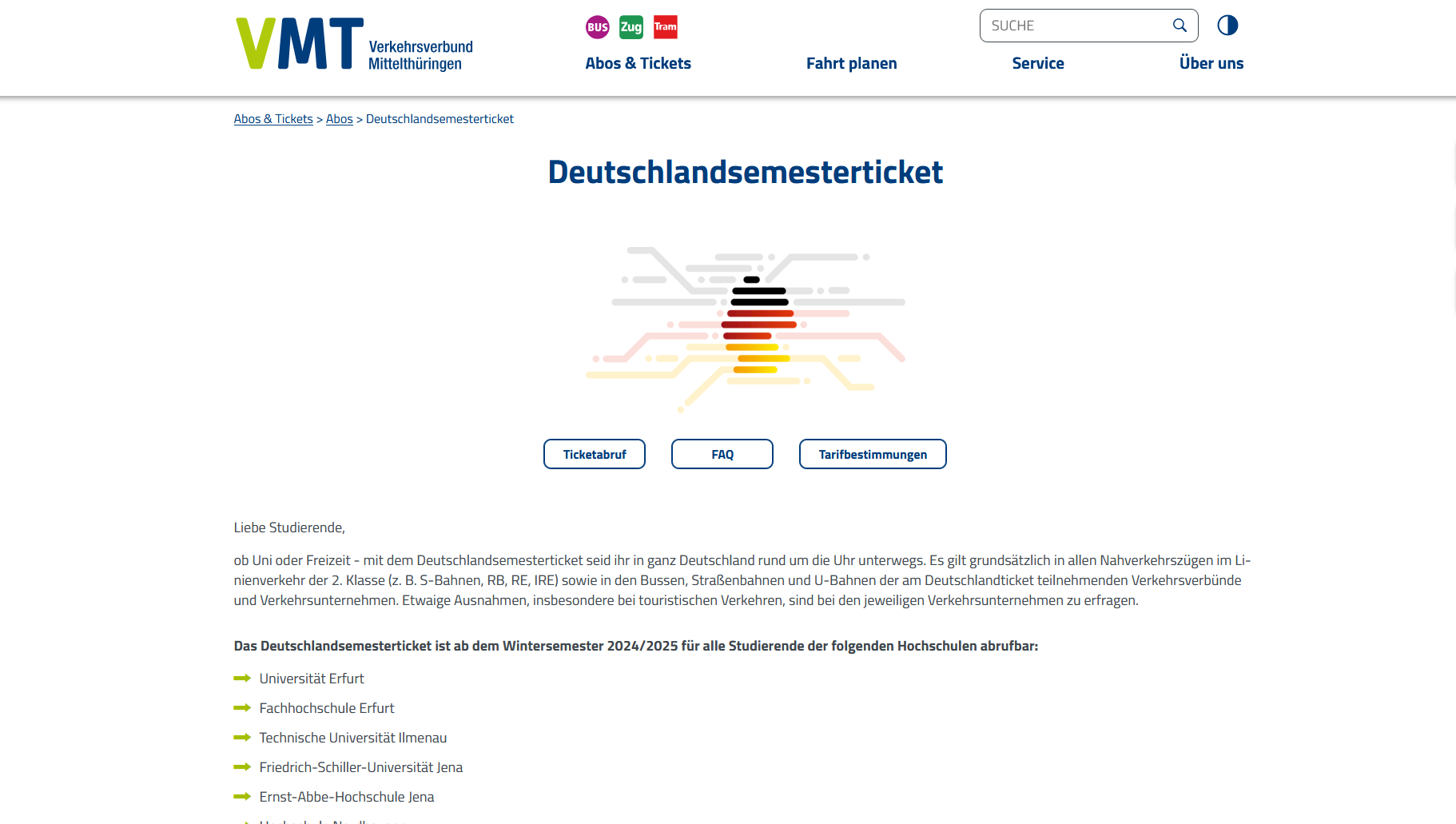
Zuerst auf folgenden Link klicken (https://www.stw-thueringen.de/finanzen/deutschlandticket/) um auf die Website vom Studienwerk Thüringen zu gelangen. Dann auf "Deutschandsemesterticket" klicken


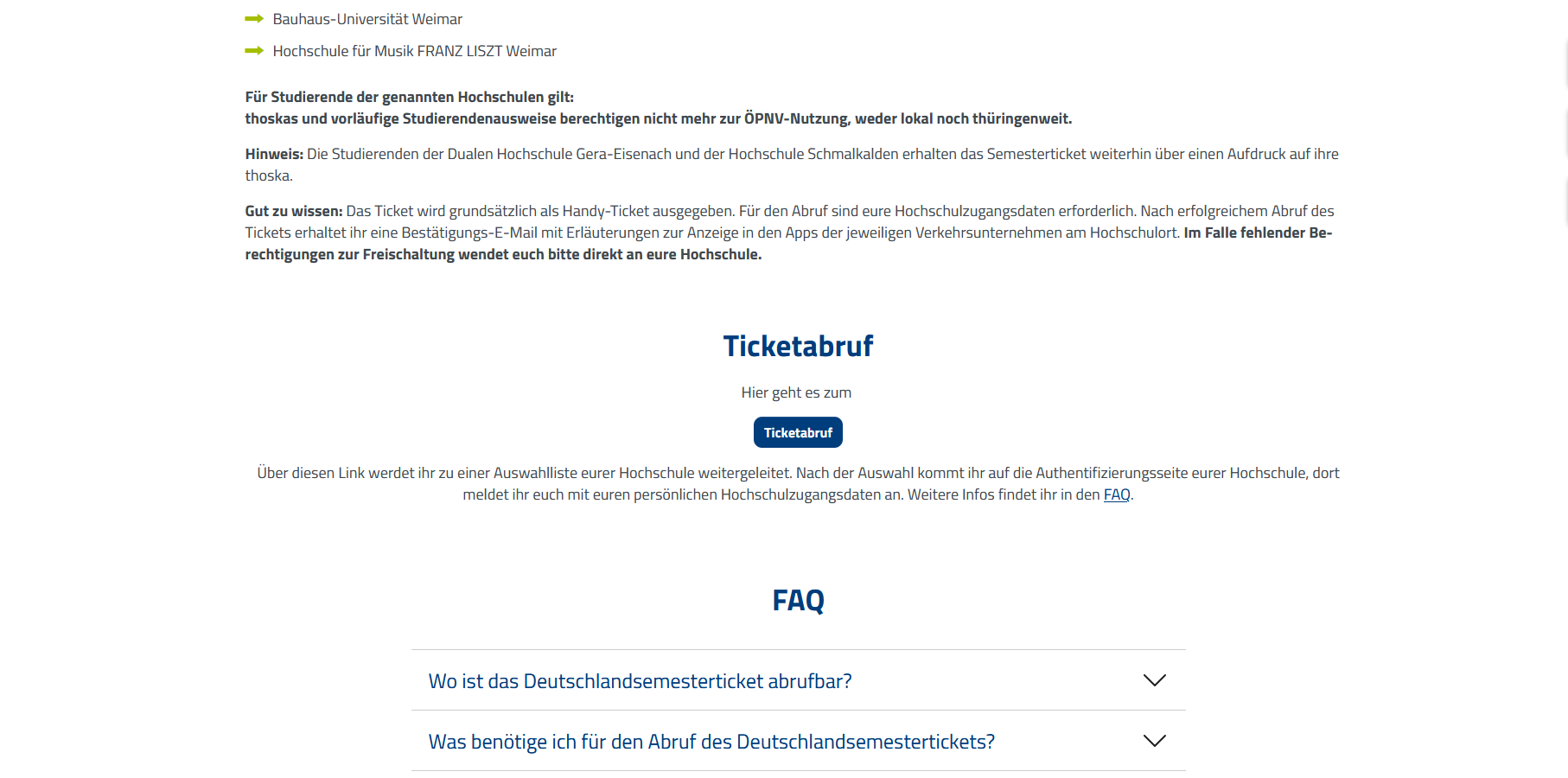
Dann einmal leicht runterscrollen und auf "Ticketabruf" klicken.


Nachdem automatisch runtergescrollt wurde nochmal auf "Ticketabruf" klicken.


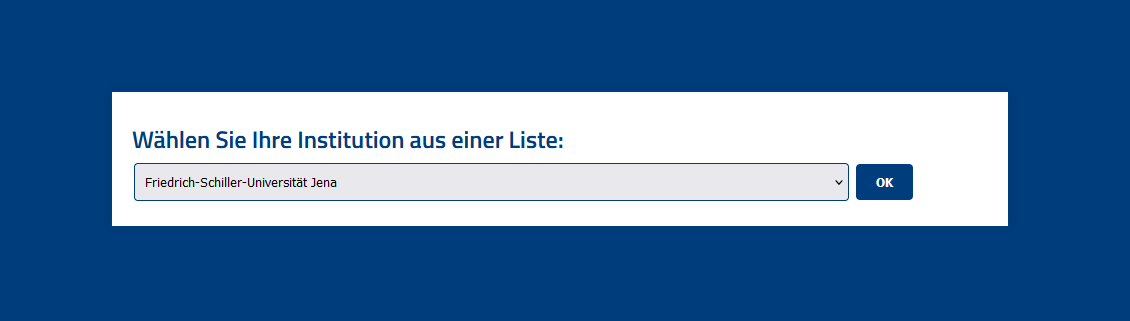
Nach der Umleitung die Friedrich-Schiller-Universität auswählen und auf "ok" bestätigen.

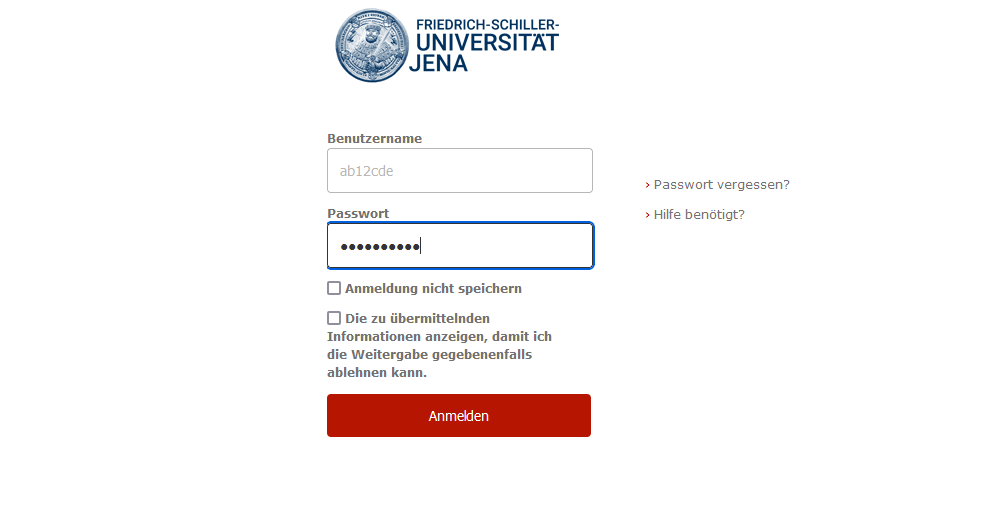
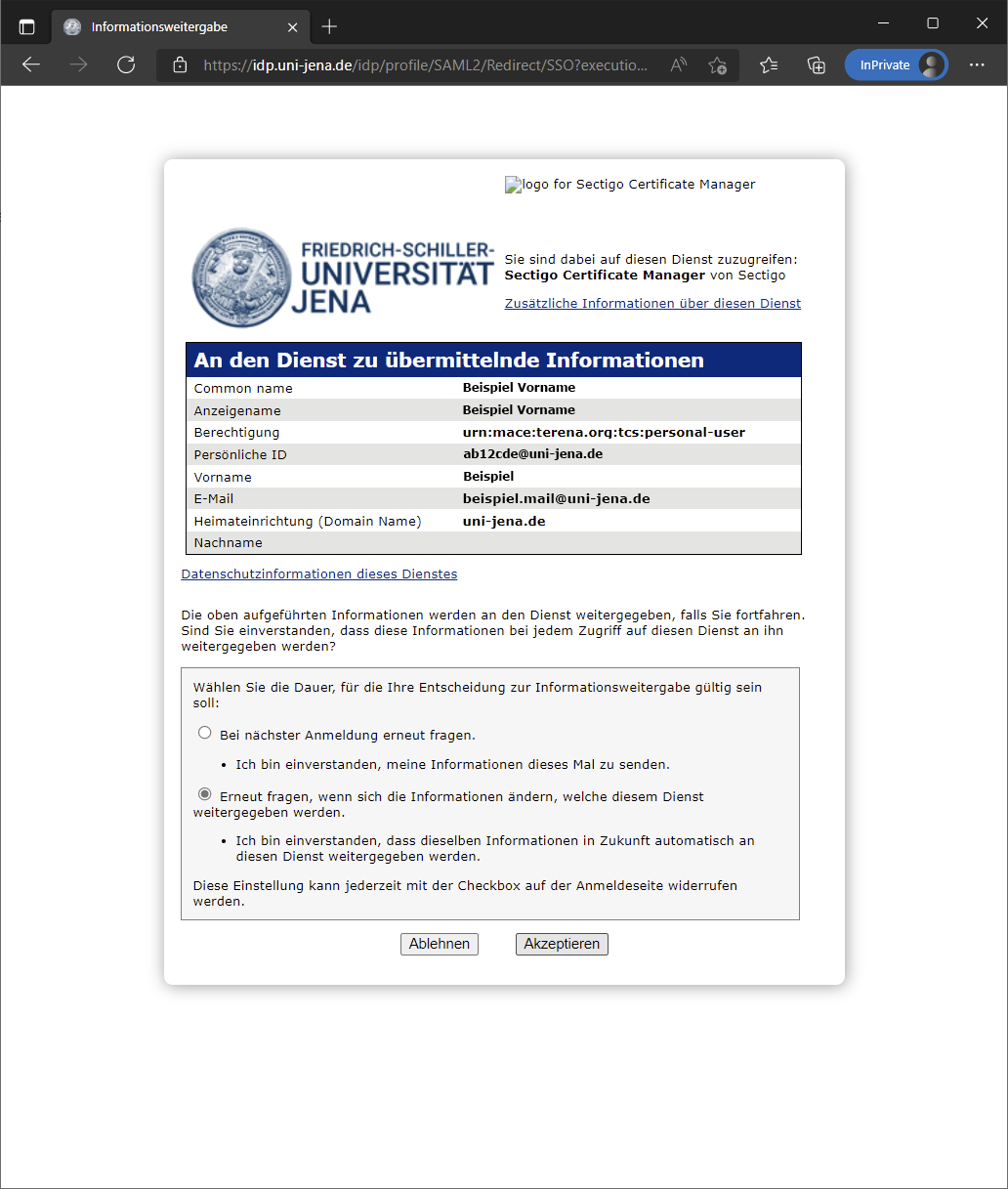
Im Anschluss kurz mit dem URZ-Kürzel und dem jeweiligen Passwort anmelden.


Nochmal alle Daten überprüfen und auf "Akzepteren" klicken.


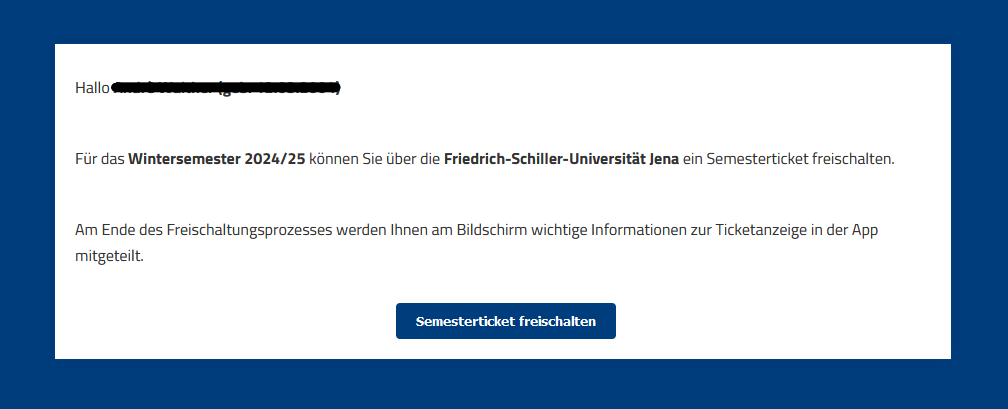
Als nächstes auf "Semesterticket freischalten" klicken


 Zum Schluss nochmal alles durchlesen und wichtige informationen (6-stellige Pin) merken und in der Mein Jena App eintragen um das Ticket aufzurufen. Alle weiteren Schritte in Fenster beachten.


2. Schritt: Zertifikat beantragen

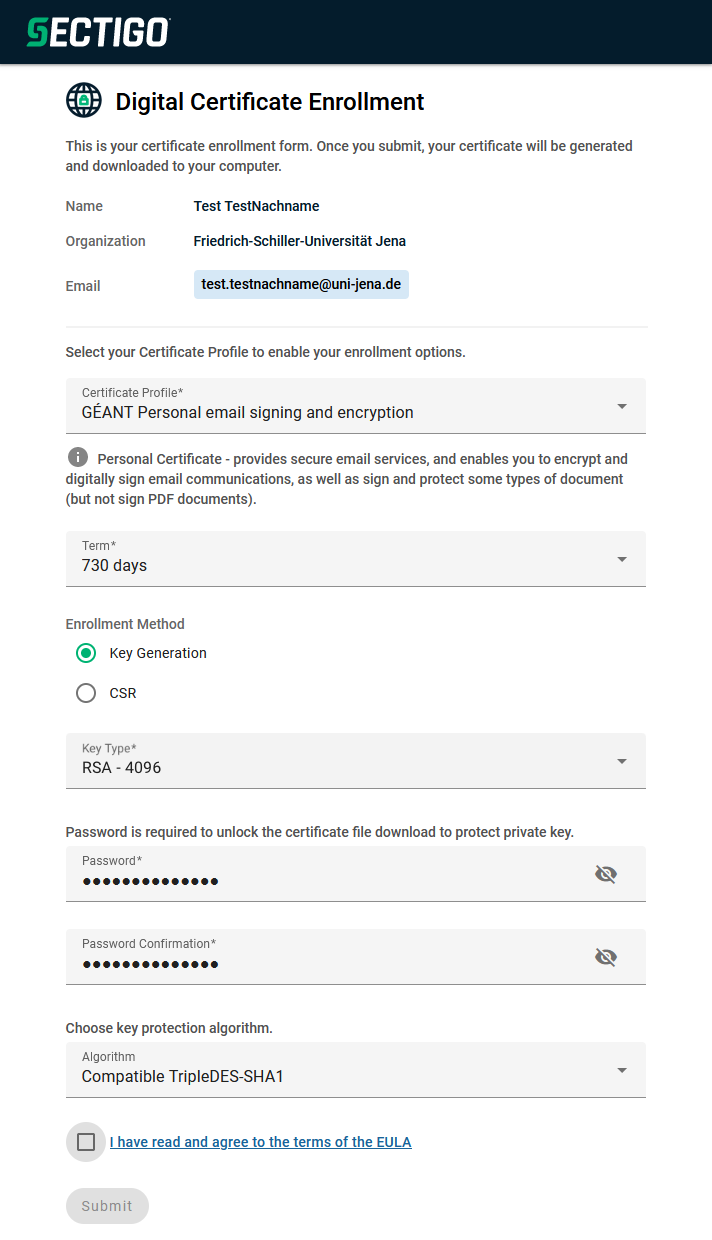
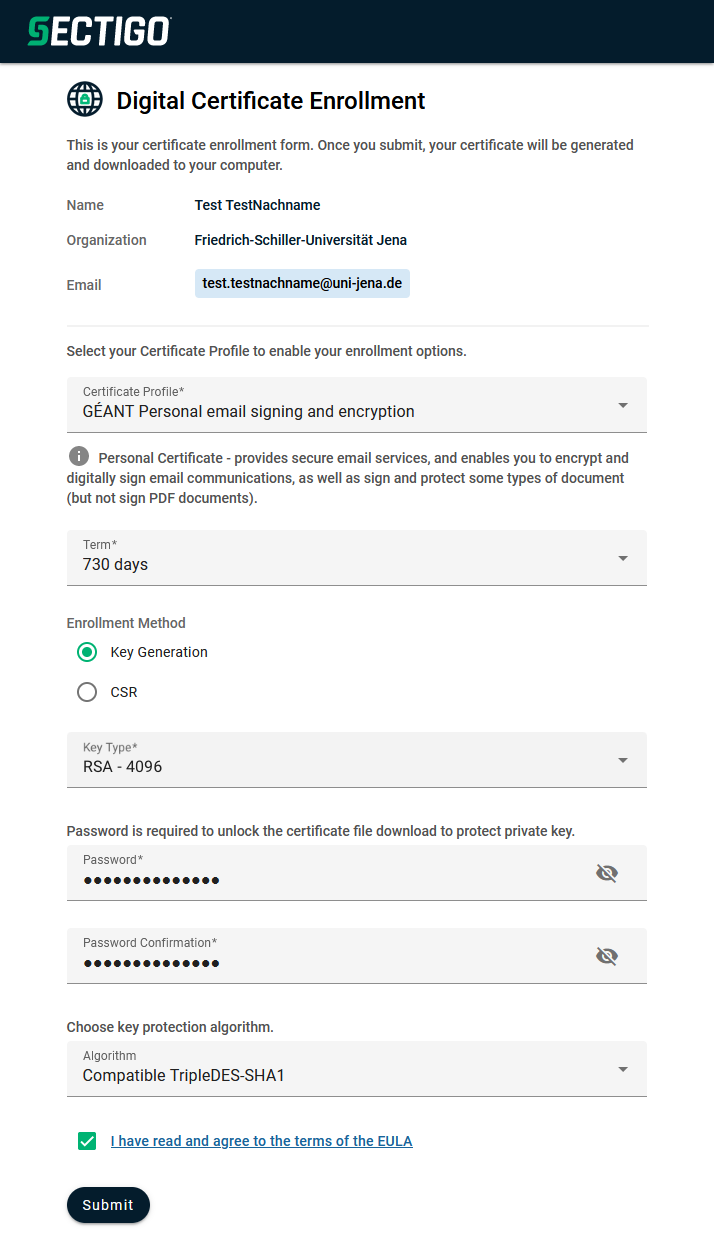
Wählen Sie die Parameter, wie im folgenden Bild zu sehen, aus und vergeben Sie ein sicheres Passwort.

Aus Kompatibilitätsgründen zu macOS, Windows und speziell Outlook sind der "Key Type" auf "RSA-4096" und die "key protection" auf "Compatible TripleDES-SHA1" zu setzen.

Das hier vergebene Passwort benötigen Sie für die Installation des Zertifikates, heben Sie dieses gut auf.
Verwenden Sie auf keinen Fall das Passwort Ihres Accounts der Universität.


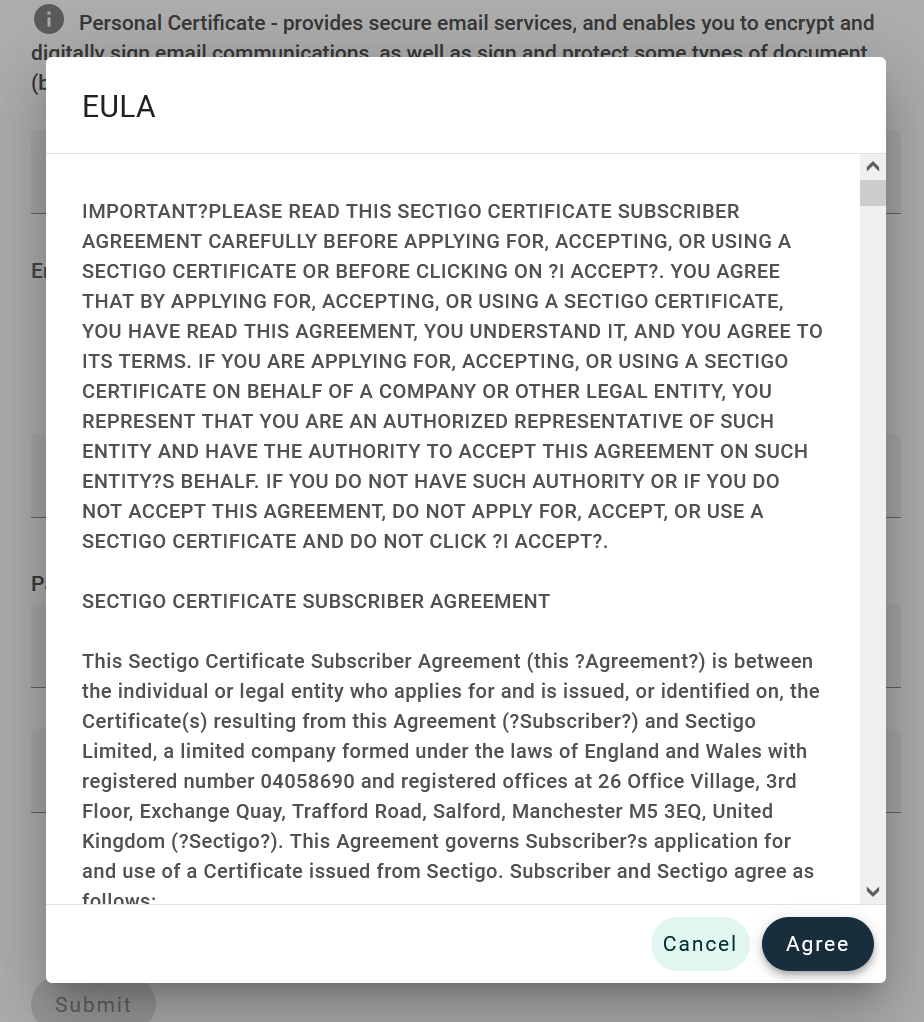
Akzeptieren Sie den Nutzungsbedingungen, indem Sie auf das Kästchen und im eingeblendeten Dialog auf "Agree" klicken.
3. Schritt: Zertifikat herunterladen


Damit Ihr Zertifikat generiert und automatisch heruntergeladen wird, klicken Sie auf "Submit".
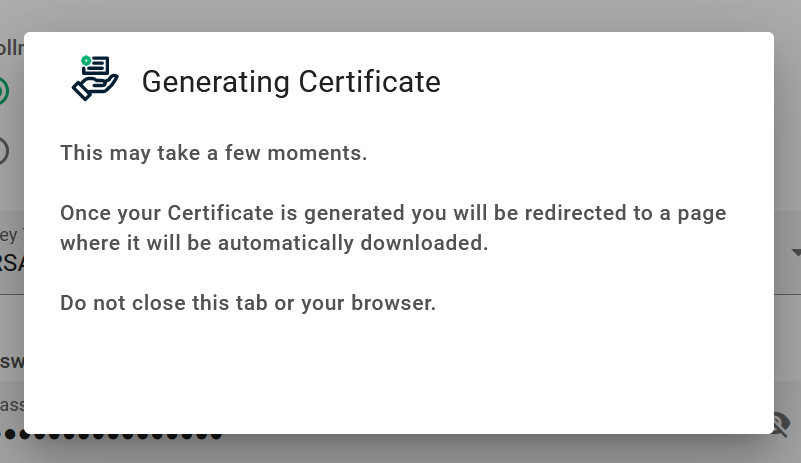

Warten Sie nun, bis der Download des Zertifikates beginnt.
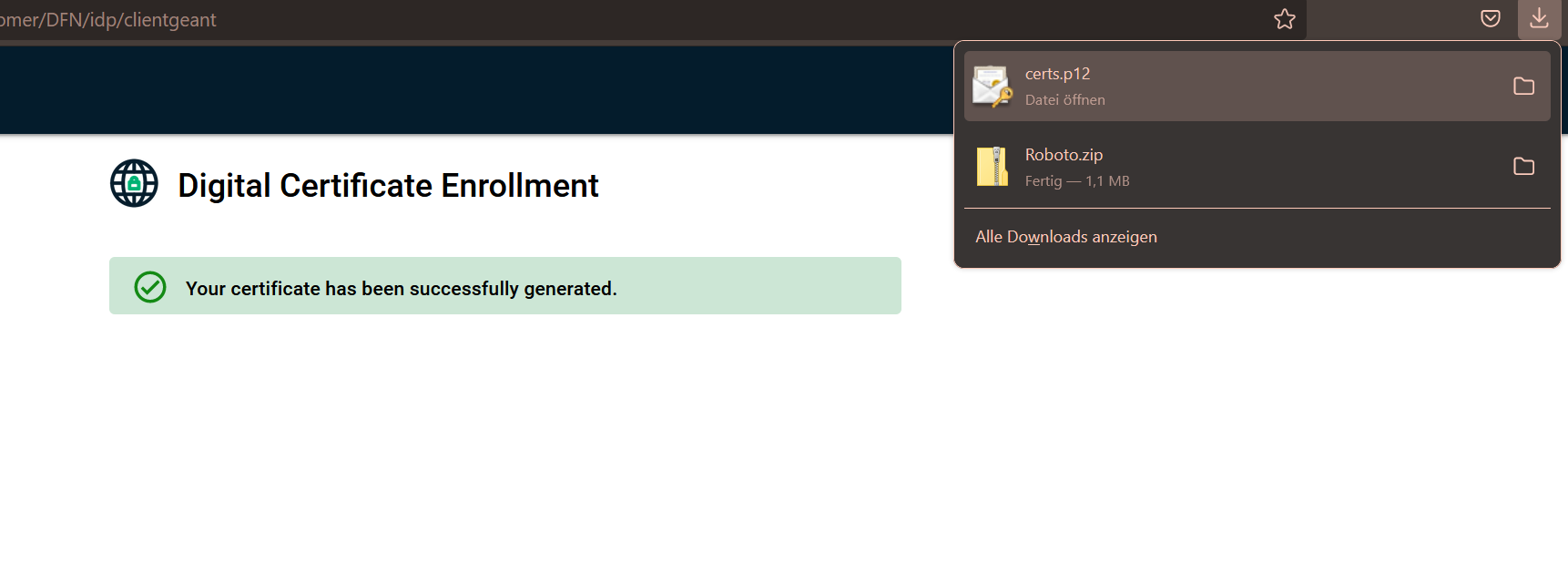
Anschließend finden Sie Ihr Zertifikat im Download-Ordner.


Summary

A digital signature is not the same as a message signature. A message signature is a customizable greeting. A digital signature, on the other hand, adds a unique code to the message that can only come from the digital signature in the possession of the true sender. (Source: Microsoft.com)

With a digital certificate, a message can be protected from tampering and also encrypted end-to-end for even more privacy.

A digital certificate, also known as a digital signature, is comparable to an identity card and helps to prove identity on the Internet.


This guide is aimed at the following target groups: -Nicht zutreffende Zielgruppen bitte löschen-

  • Students
  • Teachers
  • Employees
  • Scientific employees and assistants
  • Institutions and Commitees (e.g. student councils)
  • Working groups (e.g. projects)
  • Guests of the University of Jena

Requirements

  • an active user account from the IT Center of the University of Jena
  • Internet connection


Do not perform these steps more than once! Only the two most recently downloaded certificates are valid.

A certificate is not exchangeable. Mails that have been encrypted with a certificate can only be decrypted again with this certificate. If you lose your previously used certificate, signatures can no longer be verified and encrypted items can no longer be decrypted. Therefore, save it on your home drive or on an encrypted USB stick. Remember your assigned password for the certificate or keep it in a safe place.


Request a personal certificate

Step 1: authenticate at Sectigo

The DFN-Verein e.V. (German Research Network) offers a PKI service (public key infratructure) via GÉANT (pan-European Internet Interconnection Network of European Research). The platform for this is provided by the company Sectigo.

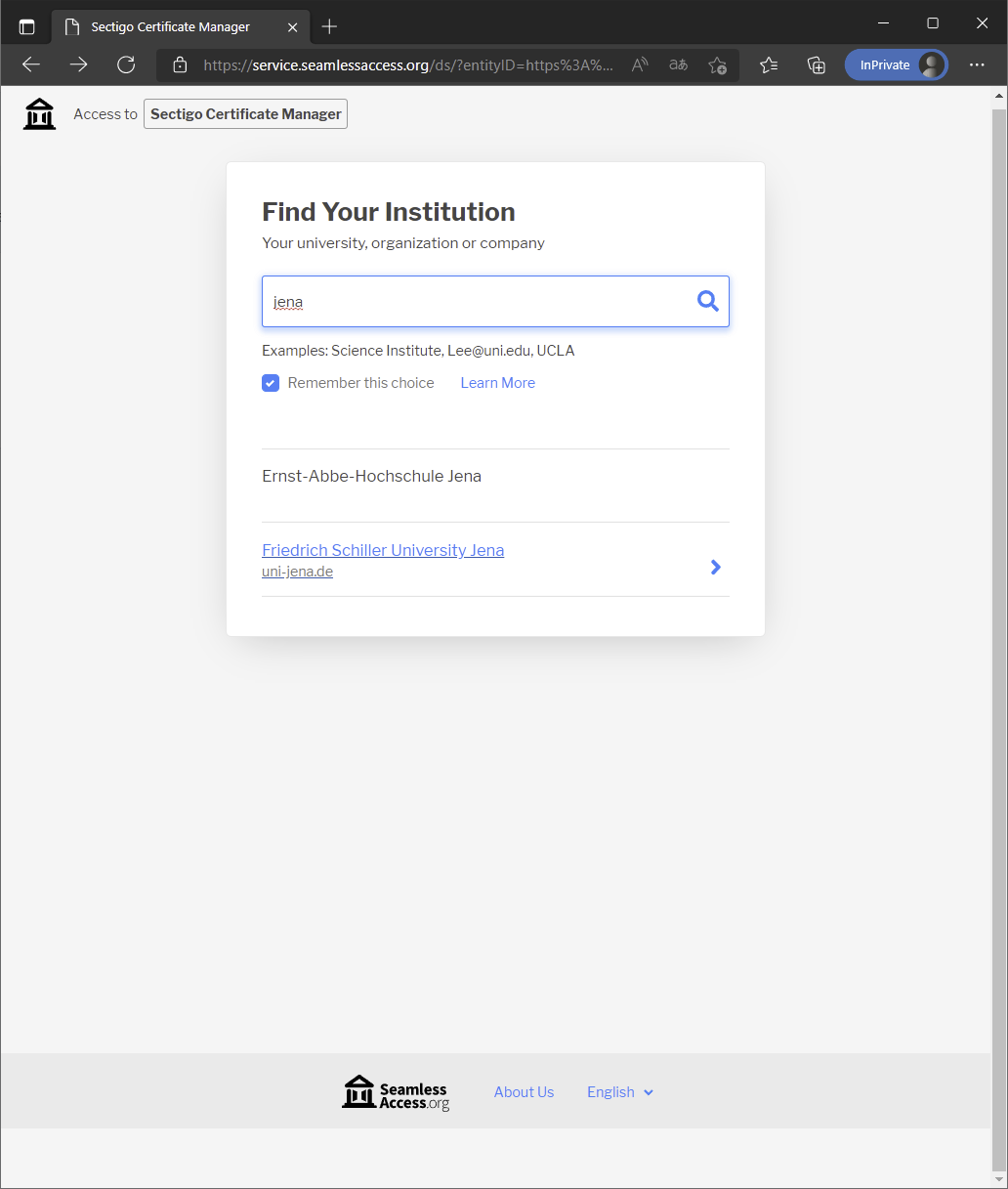
Visit the website at https://cert-manager.com/customer/DFN/idp/clientgeant to access the Sectigo Certificate Manager. Select your organization by typing "Jena" here for example. The service is available in English only.


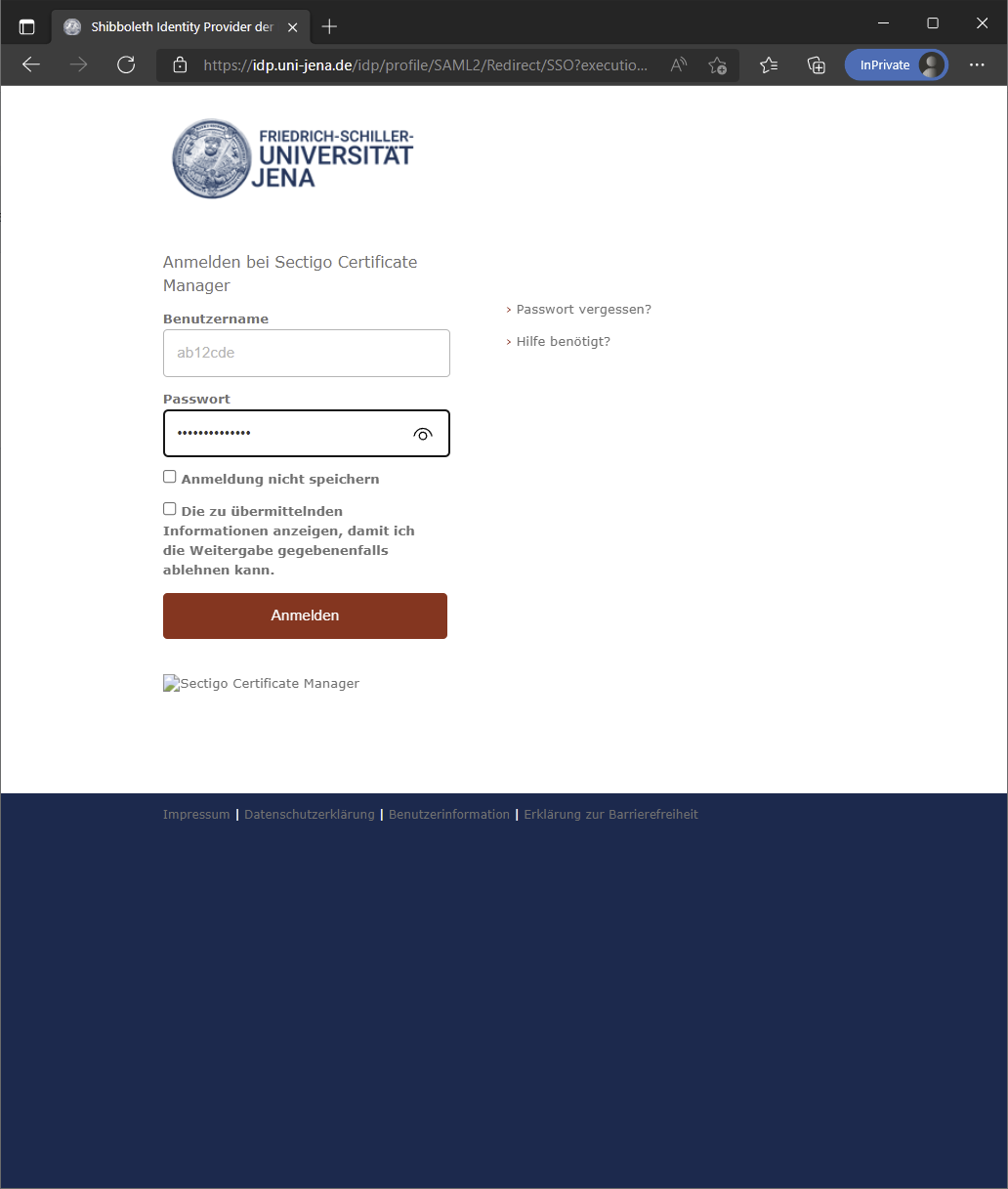
Clicking on "Friedrich Schiller University Jena" will take you to the IdP (IdentityProvider) of the University of Jena. Log in here with your login code and password.


After that, the data to be transmitted to the service provider "Sectigo" will be displayed. You must agree to this transmission. To do this, click on "Accept".

Step 2: Apply for certificate

Wählen Sie die Parameter, wie im folgenden Bild zu sehen, aus und vergeben Sie ein.

Select the parameters as shown in the following picture and assign a secure Passwort.

For compatibility reasons with macOS, Windows and especially Outlook, the “Key Type” must be set to “RSA-4096” and the “key protection” to “Compatible TripleDES-SHA1”.

You will need the password assigned here for the installation of the certificate, so keep it safe.
Do not use your university account password under any circumstances.


Accept the terms of use by clicking the box and "Agree" in the dialog that appears.

Step 3: Download certificate


To have your certificate generated and downloaded automatically, click "Submit".


Now wait until the download of the certificate starts.

After that you will find your certificate in the download folder.

Titel: "persönliches Zertifikat anfordern und herunterladen"

Stand: 08.10.2024